Checklist: Campaign setup and workflow
Use this checklist to ensure that your campaign is set up correctly before it is launched! The steps laid out below will help you ensure you are pulling in all of the right information to accurately set up and report on your campaign.
- Set your Campaign Objectives
- Make sure you are setting campaign objectives by indicating Promoted Service Lines and Promoted Facilities based on your goal to get the most meaningful data.
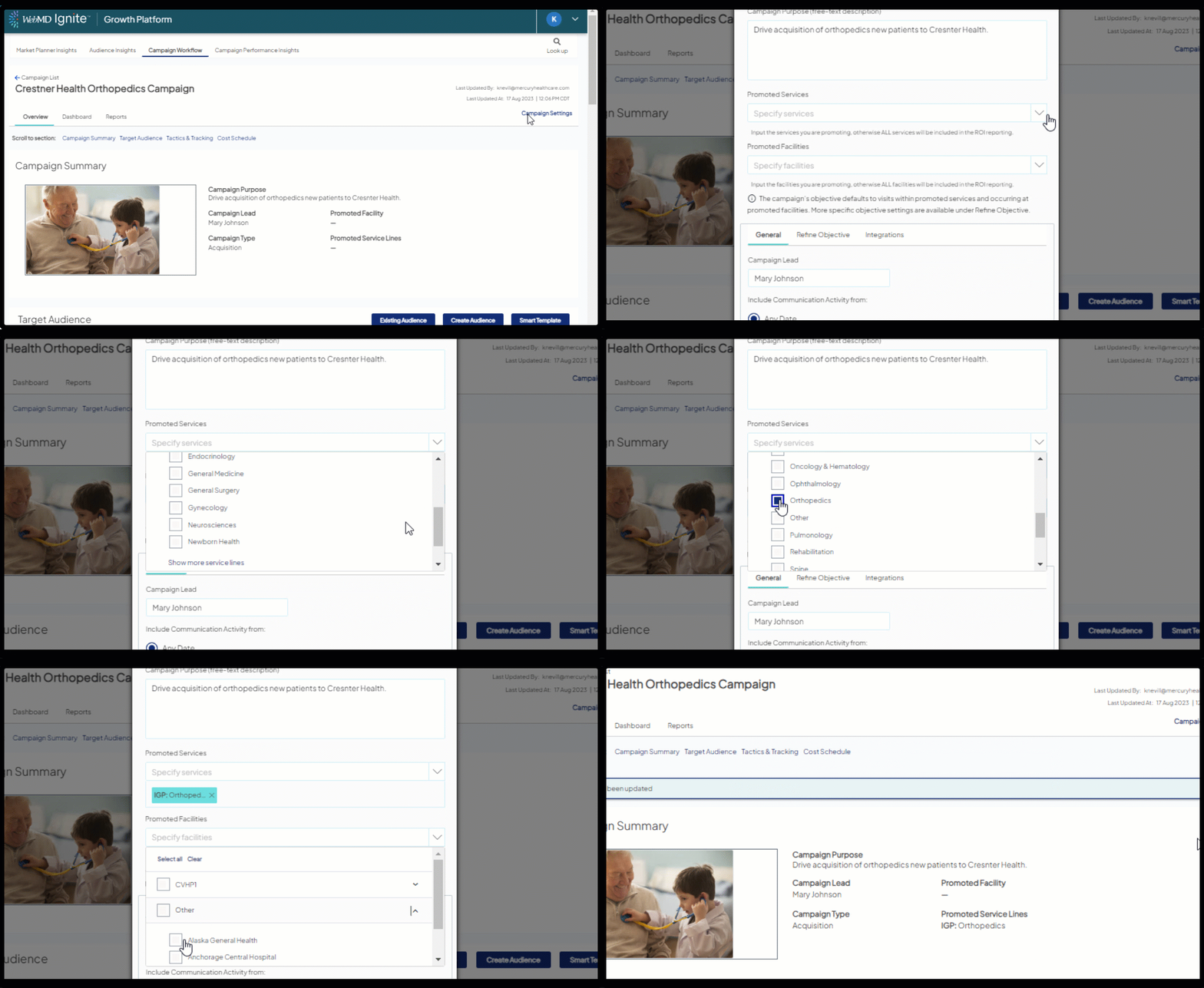
- Reminder: If you don't input the facilities or service lines you are promoting, all facilities and service lines will be pulled into your ROI reporting.
- Make sure you are setting campaign objectives by indicating Promoted Service Lines and Promoted Facilities based on your goal to get the most meaningful data.
- Pull in your marketing automation source ID
- If you are using a marketing automation tool (such as Eloqua or SFMC), it is critical to add your campaign or journey ID in the campaign settings.
- You will need to have the campaign or journey fully built in your MA tool first before adding the ID to your Ignite Growth Platform.
- Once your campaign or journey is built, you can find the ID in the URL in Eloqua.
- Copy & paste your ID and add it into your campaign settings under the Integrations tab PRIOR to launching your campaign.
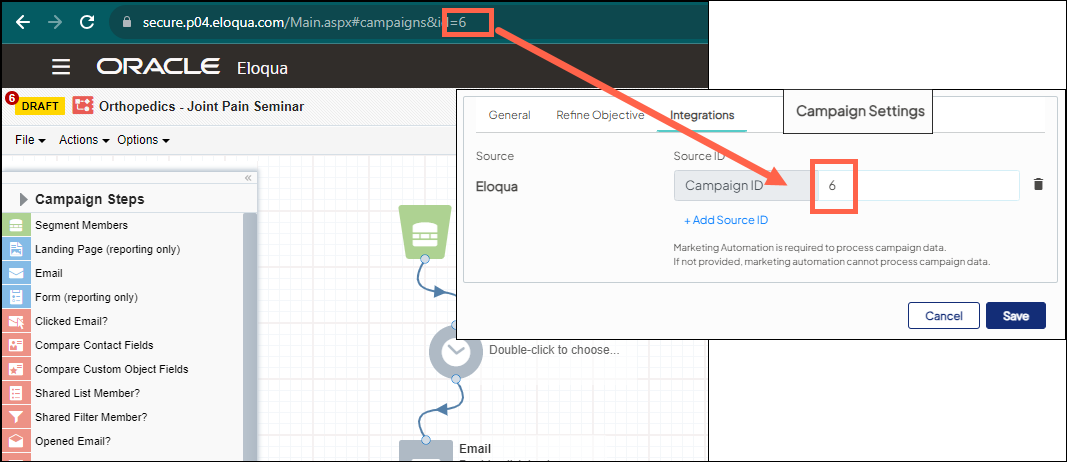
- If you are using a marketing automation tool (such as Eloqua or SFMC), it is critical to add your campaign or journey ID in the campaign settings.
- Add your direct mail send date
- If you are using direct mail with your campaign, ensure that you add in the mail date. It is recommended that you add in the date after sending the direct mail.

- If you are using direct mail with your campaign, ensure that you add in the mail date. It is recommended that you add in the date after sending the direct mail.
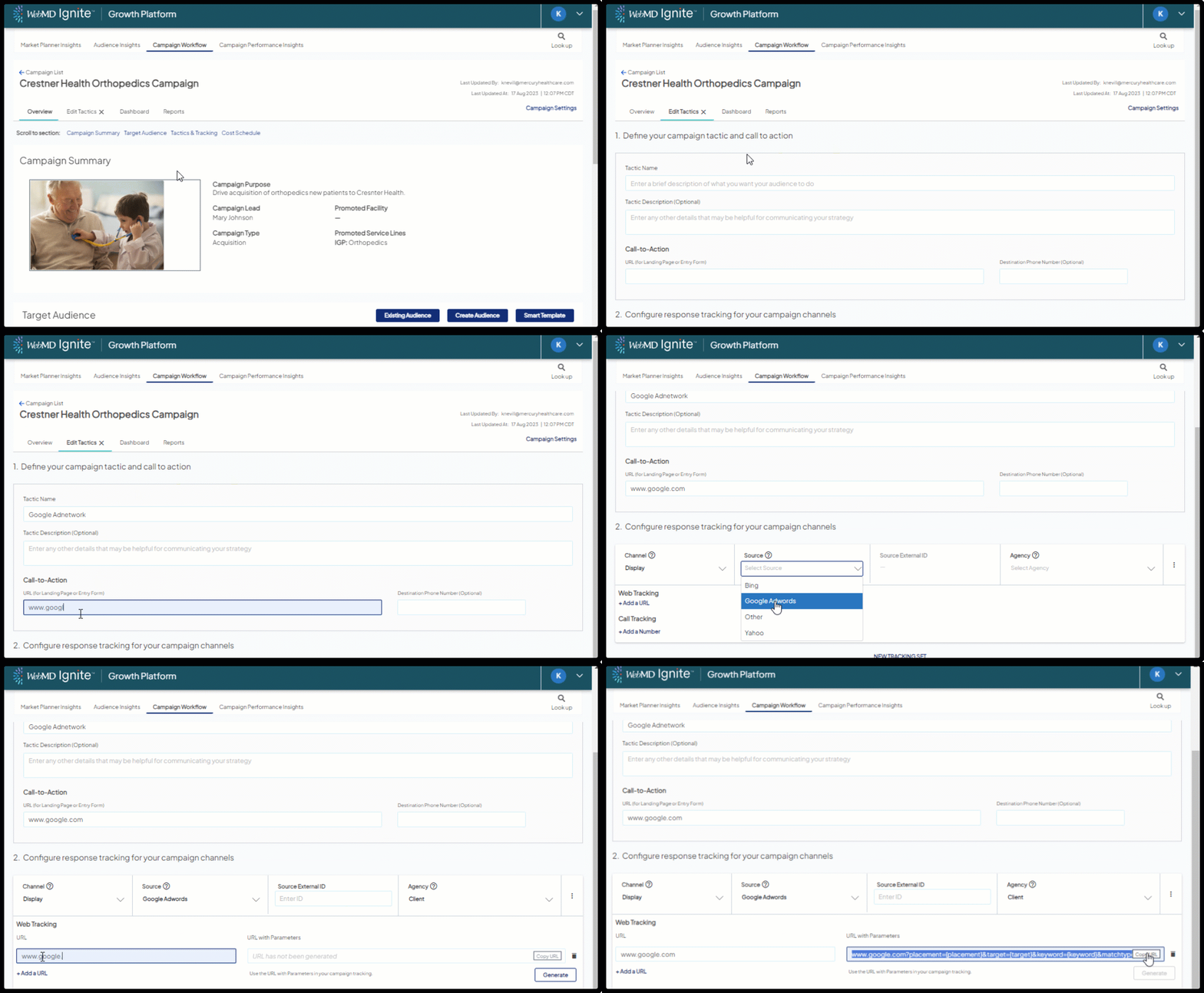
- Add tactics and tracking to your campaign
- If you are using a URL in your messaging, ensure that you are generating and using the URL from the ‘URL with Parameters’ field.
- If you do not use the URL with parameters field, you will not be able to track clicks to your CTA (call-to-action) URL.
- Tracking phone number
- If you are using a phone number in your messaging, ensure that you are using the number from the ‘Tracking Phone Number’ field.
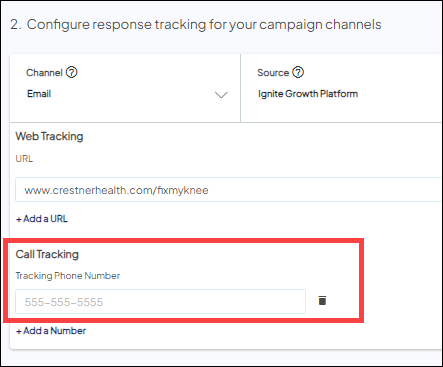
- If you do not use the Tracking Phone Number, you will not be able to track inbound calls associated with your campaign message.
- If you are using a phone number in your messaging, ensure that you are using the number from the ‘Tracking Phone Number’ field.
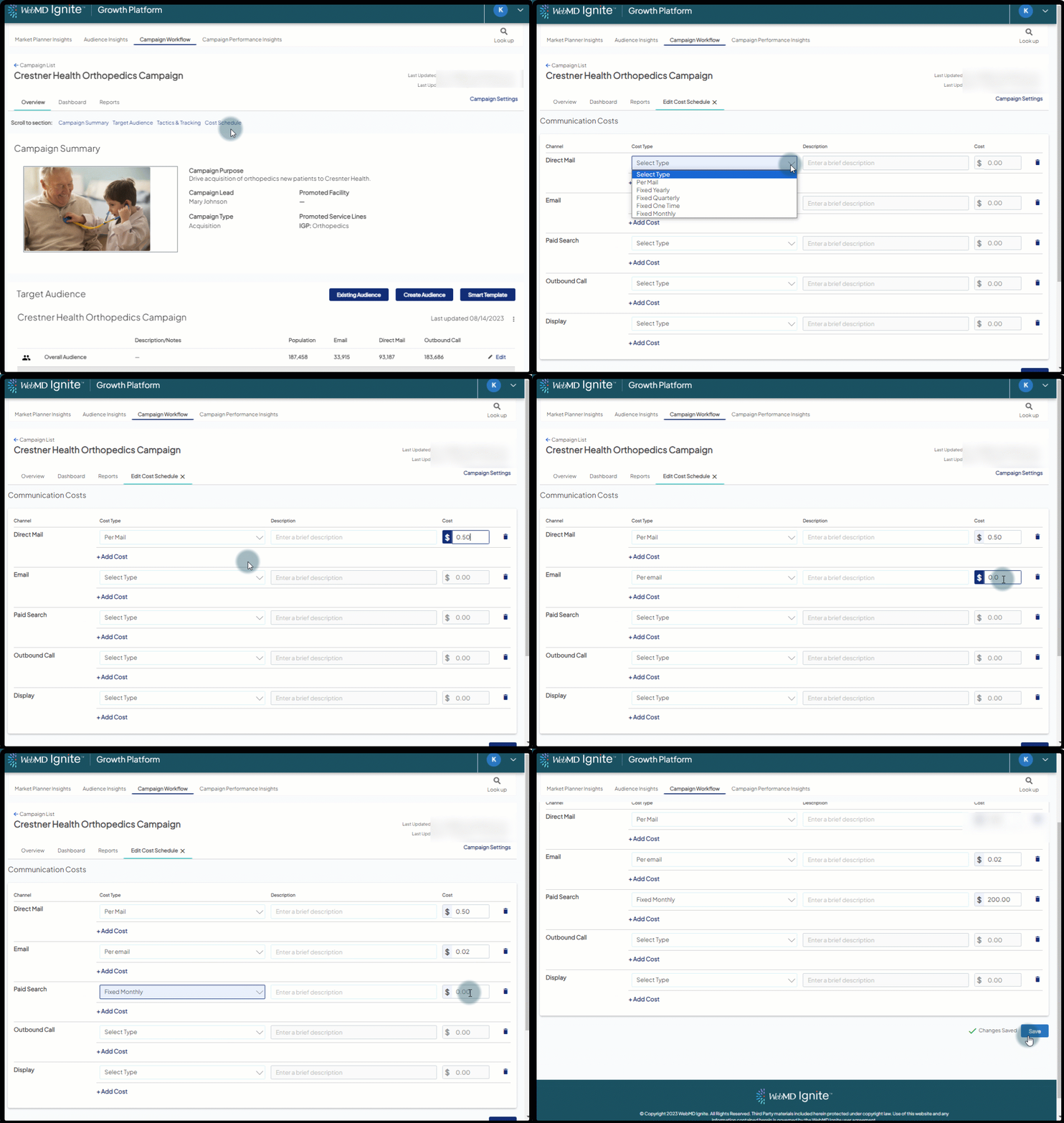
- Input cost schedule
- Adding costs for your campaign helps to ensure that your reporting reflects accurate investment and ROI.
- For each channel, input the communication costs.
- Adding costs for your campaign helps to ensure that your reporting reflects accurate investment and ROI.