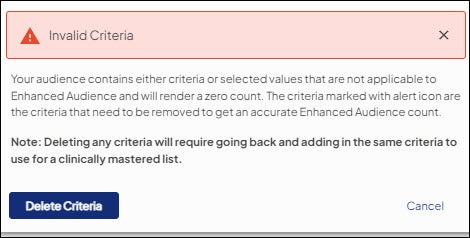
Fix invalid criteria
Occasionally, you may open an existing target audience with previously applied criteria and/or a selected value that is not or no longer valid, making the audience unusable. This can also occur when you create a new audience that includes Unmastered Persons records.
Existing audiences
In this situation, Ignite Growth Platform automatically launches a workflow to inform you of the invalid criteria/criterion values and prompts you to accept the needed changes or delete the invalid filters so you can move forward with building your target audience.
Invalid criteria can occur for a variety of reasons:
- Based on research, WebMD Ignite may need to retire or update criteria in the audience criteria library and/or the values available to select for a criterion.
- Your health system might choose to stop/change the data it purchases (for example, New Movers) or alter the way it sends data (like the Facility reference file in Encounter data source requirements).
Both of these scenarios could result in invalid criteria/criterion values.
Warning indicators
In Audience Insights, you are immediately presented with the following warning indicators when you open an audience with invalid criteria and/or criterion values applied:
- A warning window that:
- Lists the currently applied invalid criteria and/or criteria values; and,
- Prompts you to choose Accept Changes which triggers the application to fix the issues.
- On the Inclusions/Exclusions canvas, a red triangle icon displays in the header of each invalid criterion and/or criterion with invalid values selected. This is true for both the Overall Audience and Audience Groups tabs.
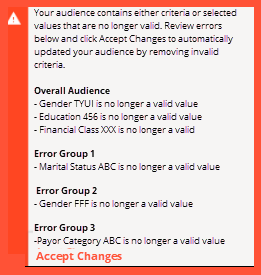
While these warnings exist (that is, you have not yet clicked Accept Changes), your actions for the audience are limited to the following:
- You may exit the audience.
- You may navigate between Overall Audience and Audience Groups.
- You may navigate between Inclusions and Exclusions.
If you click other typically actionable buttons/options (e.g., Add Criteria, New Criteria Group, etc.), the warning window ‘shakes’ to remind you where action is needed first.
Since the application makes all the needed changes for you, review carefully the listed criteria and/or selected criterion value(s) in the warning window. When ready, choose Accept Changes.
The application automatically fixes the audience by:
- Removing the criterion entirely from the Inclusions/Exclusions canvas; and/or,
- Removing the invalid selected values from the applied criterion but leaving the criterion otherwise in place.
Once corrected, the application also immediately saves the audience. You can then work with the audience as expected.
New audiences: Audiences including Unmastered Persons
Since Unmastered Persons records have limited fields, audience criteria options are also limited when your audience includes Unmastered records. Below are 3 scenarios when the “Invalid Criteria” message will display and the recommended steps in order to address the popup.
Scenario 1: Unmastered Persons records only
When creating an audience using Unmastered Persons records only, the following occurs once you click save:
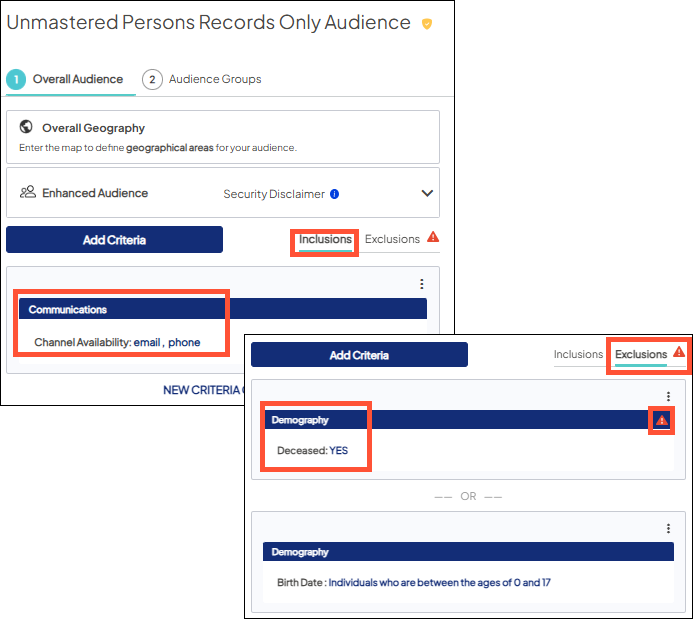
- Criteria auto-populates
- Inclusions: Communications > Channel Availability > email, phone
- Exclusions: Demography > Deceased; Demography > Birth Date > ages 0-17 As of Now
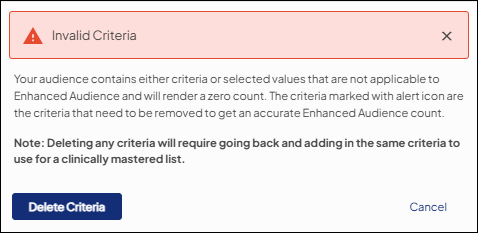
- Invalid Criteria message displays
- A red triangle appears next to the Deceased exclusion
What to do
Choose from the following 2 options:
- Click the ‘Delete Criteria’ button
- The red triangle is removed
- The Deceased exclusion is removed from the audience
- Click ‘Cancel’ or ‘X’ on top right of message
- The red triangle remains next to the ‘Deceased’ field
- Unmastered records do not have a ‘Deceased’ field so leaving it as an exclusion does not impact the audience count
NOTE: After starting your audience with Unmastered records only, you may later decide to add in Mastered records and Mastered records DO have a ‘Deceased’ field, so when creating your Unmastered records only audience, if you:
- Chose “Delete Criteria’, you must add the Deceased exclusion back in
- Clicked ‘Cancel’ or ‘X’, the Deceased exclusion is still applied so you can add additional filters knowing all Mastered records marked as Deceased will NOT be included in your audience
Scenario 2: Mastered Persons records audience switched to an Unmastered records audience
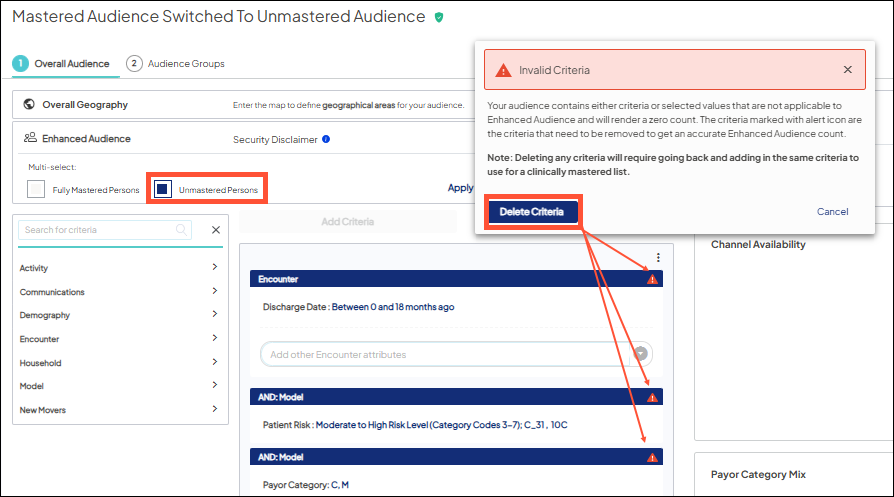
When you create an audience that includes only Mastered Persons, it’s likely you’ll apply many encounter and demographic criteria filters to ensure you’re including the right people for your message. Then, perhaps strategy changes and you switch to an Unmastered Persons list instead. There’s a good chance that most filters you’ve selected will be flagged as invalid since Unmastered records don’t have the same demographic data requirements - meaning, they don't have demographics to reference by various criteria filters..
What to do
Decide if you want to save the Mastered Persons audience along with the filters you’ve applied for use at another time.
- If yes, save and then duplicate the audience for future use. Once duplicated, return to the original audience and unselect Fully Mastered Persons and select Unmastered Persons
- Next, click the “Delete Criteria” button and build the Unmastered Persons audience according to your strategy
- The duplicated audience will be available in the list of audiences, if needed
- If no, remove all invalid filters with a single click of the Delete Criteria button and continue building the audience by selecting filters applicable to Unmastered records.
Scenario 3:Combined (Mastered and Unmastered records)
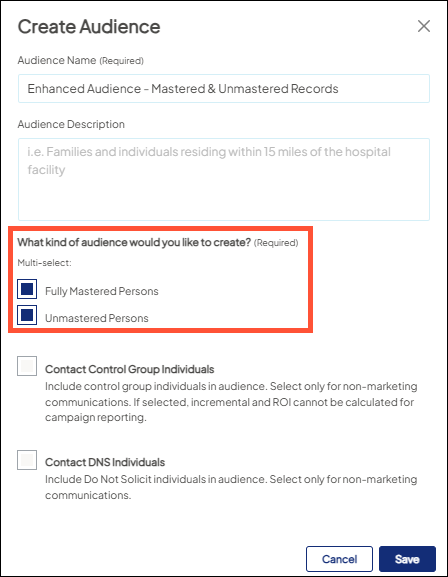
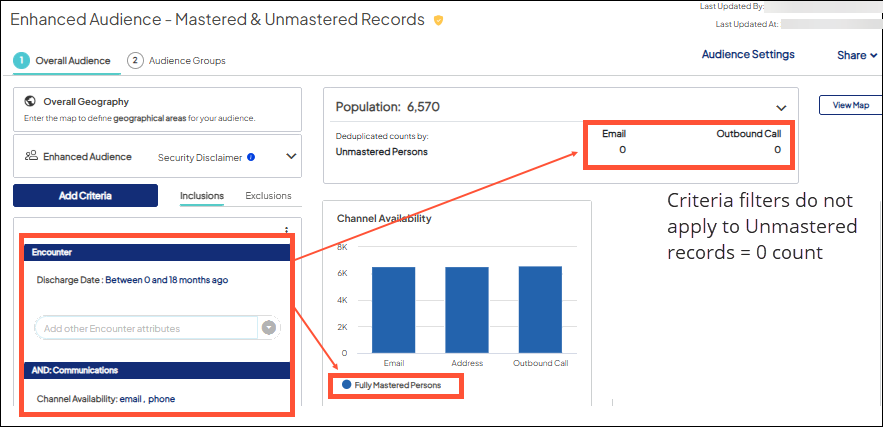
When creating an audience that includes both record types, if you select criteria applicable only to Mastered records, the count for Unmastered records will be zero.
What to do
To build a mixed audience, use separate Criteria Groups or separate Audience Groups.
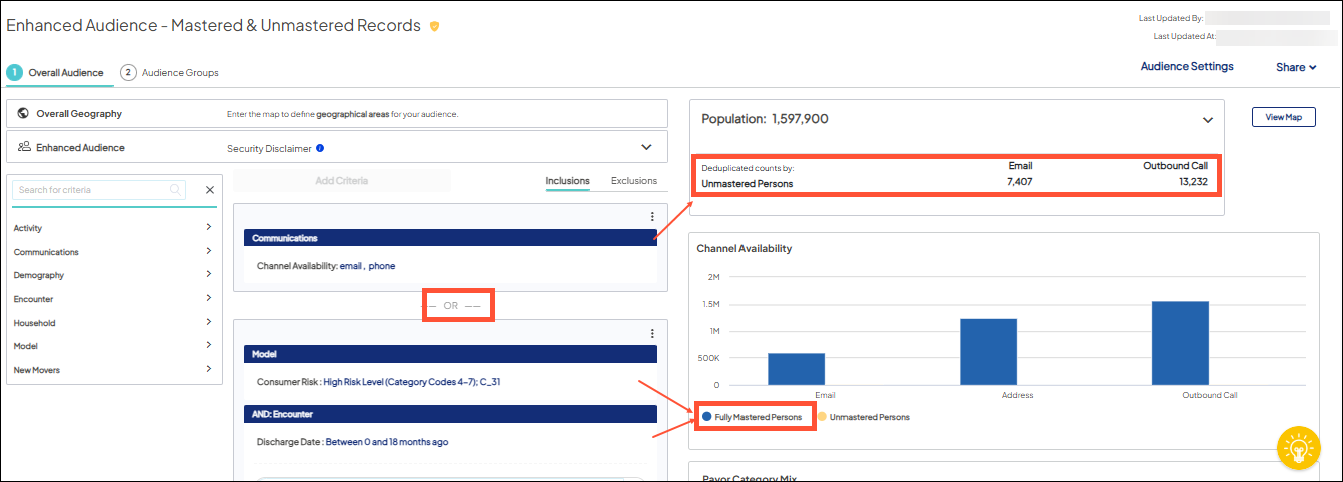
If the Invalid Criteria message displays when you’re creating a mixed audience, review the flagged criteria and either click “Delete Criteria” to remove, or, as in the case of the Deceased exclusion, if it doesn’t impact the number of available Unmastered records included in the audience, click ‘Cancel’ or the ‘X’ at the top right.