Assign user roles
To control the features and actions your health system’s users can see and do in Ignite Growth Platform, you can assign user roles to your health system’s Ignite Growth Platform end users.
To request user role implementation for your users, contact your Account Manager.
Select user roles
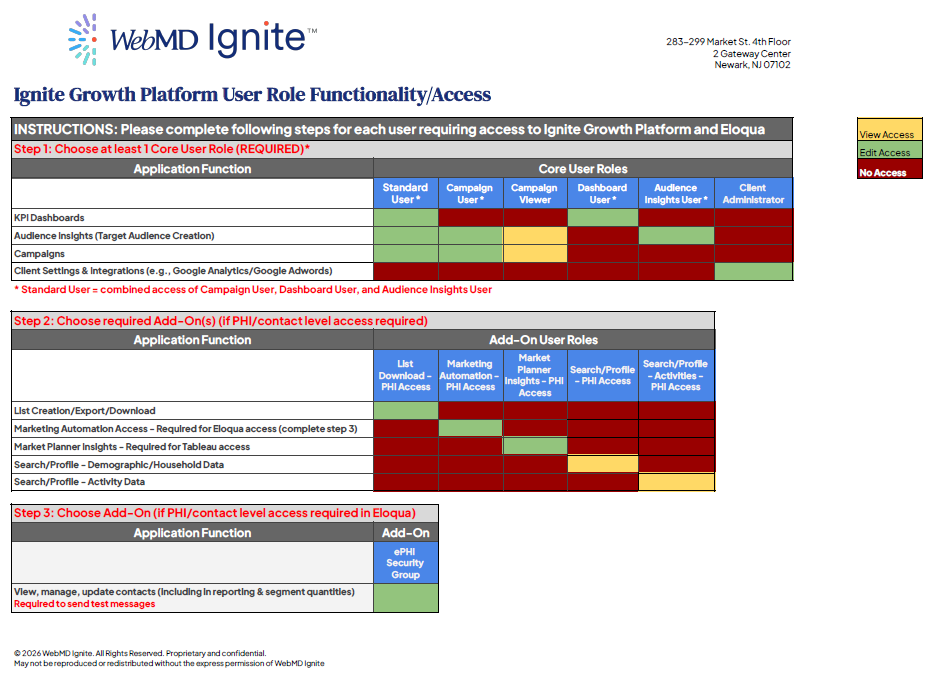
Consult the easy reference charts below for detailed descriptions for each user role. The charts also outline the following decision-making tree for selecting the user roles to assign to your end users (downloadable PDF also available below):
- Core user roles. To have any access at all to Ignite Growth Platform, an end user must be assigned at least one of the six core user roles. None of the core user roles expose Protected Health Information (PHI).
- Choose one or more of the following core user roles: Standard User*; Campaign User; Campaign Viewer; Dashboard User; Research & Planning User; and/or Client Administrator.
- *Standard user includes the permissions that are provided by the Campaign User, Dashboard User, and Research & Planning User.
- Add-on user roles. When a user requires access to application functions to your Ignite Growth Platform that expose PHI, assign one or more of the appropriate following add-on user roles: List Download - PHI Access; Marketing Automation - PHI Access; Advanced Analytics - PHI Access; Search/Profile - PHI Access; Search/Profile - Comm Activities - PHI Access. Each of these expose an application function of Ignite Growth Platform that exposes PHI. The labels associated with each of the add-on user roles contains the notation PHI Access as a reminder.
- Eloqua security options/roles. In order to have any access to marketing automation (Eloqua), a user must first have the Marketing Automation - PHI Access add-on user role from step 2. PHI access is exposed in the marketing automation tool - this level of access is required to allow users to send test messages.
- For Ignite Growth Platform user roles that grant access to marketing automation, the user must also be set up as a user in the marketing automation tool itself in order to connect as expected.
User role definitions
Step 1 - Core User Roles (Choose at least 1)
| Core User Role | Description |
|---|---|
| Standard User* | User has access to all application features and actions except for application administrative settings, list download, Advanced Analytics, PHI access in Marketing Automation and Search/Profile. |
| Campaign User* | User has edit access to Campaigns and, from within a campaign, edit access to target audiences attached to campaigns. Notable exclusion: This user role does not grant the ability to create a direct mail list, sync a target audience to marketing automation, or access the Search/Profile feature. *Not needed if Standard User |
| Campaign Viewer | User has view access to campaigns in Campaigns tab and, from within a campaign, view access to target audiences attached to campaigns. |
| Dashboard User* | User has access to Dashboards, which houses key performance metrics for the health system and marketing campaigns. *Not needed if Standard User |
| Audience Insights User* | User has access to Audience Insights, specifically to create and edit Target Audiences; user does not have access to Market Planner Insights, cannot create a direct mail list and cannot sync an audience to Marketing Automation. *Not needed if Standard User |
| Client Administrator | Provides access to the client settings of Ignite Growth Platform, including setting up integrations; for Client Admins who also need access to other Ignite Growth Platform features, be sure to add other user roles (e.g., Standard User). |
Step 2 - Add-On User Roles (Choose if PHI/contact level access required)
| Add-On User Roles | Description |
|---|---|
| List Download - PHI Access | User can create/download direct mail lists from within a Campaign. Add this role to Standard User, Campaign User or Audience Insights User if user needs to create direct mail lists from Campaign. |
| Marketing Automation - PHI Access | User can sync audiences to Marketing Automation from within a Campaign and launch Marketing Automation from Profile menu. Add this role to Standard User, Campaign User or Audience Insights User so that user can access MA. Adding this role requires completing Step 3 below. |
| Market Planner Insights - PHI Access | User can access Market Planner Insights from within Audience Insights. Add this role to Audience Insights User so that links to Market Planner Insights are available. |
| MPI - Consumer IQ Report User - PHI Access | Add this role to Audience Insights User so that a link to the Consumer IQ Report is available in the MPI application panel. Purchase required to use this add-on role. |
| MPI - Retention IQ Report User - PHI Access | Add this role to Audience Insights User so that a link to the Retention IQ Report is available in the MPI application panel. Purchase required to use this add-on role. |
| Search/Profile - PHI Access | User has view access to Search/Profile feature to see consumer demographic data and household data. Add this to any Core User Role to provide access to this feature. |
| Search/Profile - Comm Activities - PHI Access | User has view access to activity data related to consumers in the Search/Profile feature. User must have Search/Profile - PHI Access role assigned. |
Step 3 - Eloqua Add-On (if PHI/contact level access required in Eloqua)
| Eloqua User Role | Description |
|---|---|
| ePHI Security Group | User has access to contact level data, including segment quantities and reporting and is able to send test messages to self and others. Without ePHI Security Group, no insight into volume of contacts available and unable to send test messages. |
User role functionality/access
INSTRUCTIONS: Support license required
Please complete this user request form following steps for each user requiring access to Ignite Growth Platform and/or Eloqua.
On the User Request Form tab:
- Choose at least 1 Core User Role (REQUIRED)
- Choose required Add-On(s) (if PHI/contact level access required)
- Choose Add-On (if PHI/contact level access required in Eloqua)
Click the image below to download the role definition PDF: