To ensure your aggregate reports provide the most accurate and actionable insights, consider these strategic recommendations:
- Maintain campaign setting consistency
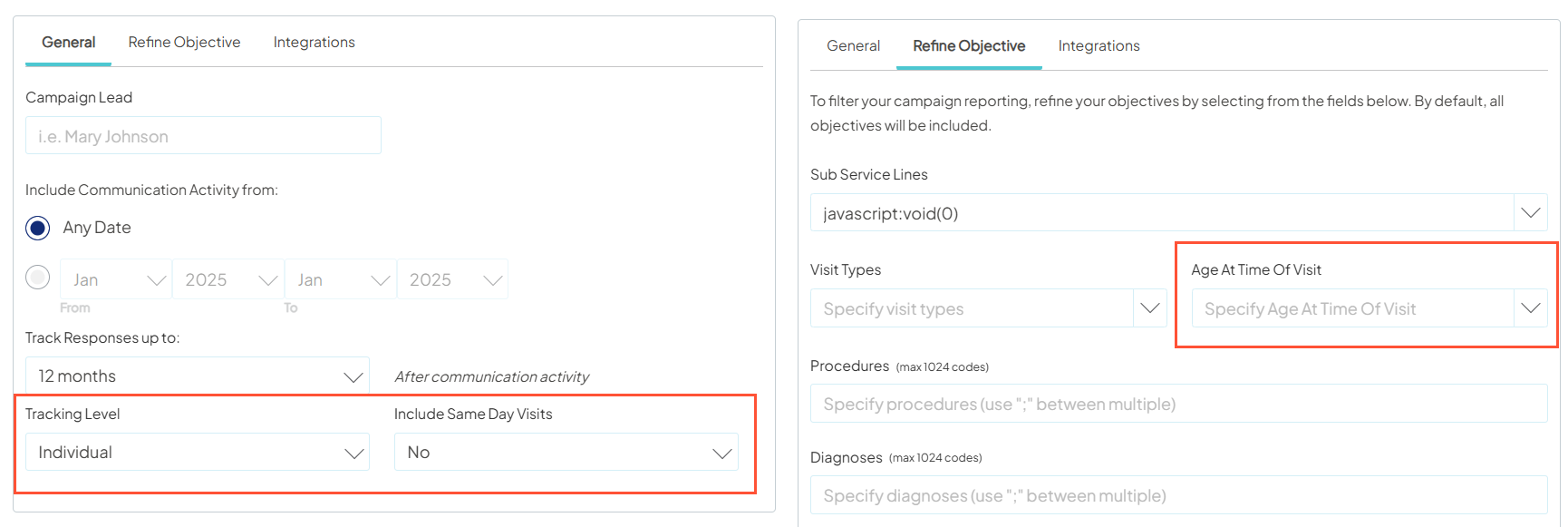
- For the most accurate "apples-to-apples" comparison, ensure all campaigns in your aggregate group use standardized settings at the creation phase. While the platform enforces certain defaults (Individual tracking, "All" age range, and Next Day attribution), keeping your Refine Objective settings (like specific service lines) consistent across the group will yield cleaner results.
| Setting | Default | Reason |
|---|---|---|
| Tracking Level | Individual | Ensures outcomes are tracked to specific patients. |
| Age Range | All | Standardizes the demographic base. |
| Include Same Day Visits | No (Next Day) | Standardizes the attribution window. |

The campaign's objective defaults to visits within promoted services and occurring at promoted facilities. More specific objective settings are available under Refine Objective.
- Use descriptive and specific naming conventions
- Since the platform allows you to create numerous reports, use a naming convention that includes the region, service line, and time period (e.g., "All East Region Cardiology Campaigns FY24-FY25"). This makes it easier for you and your teammates to identify the report's purpose from the "All" reports view.
- Since the platform allows you to create numerous reports, use a naming convention that includes the region, service line, and time period (e.g., "All East Region Cardiology Campaigns FY24-FY25"). This makes it easier for you and your teammates to identify the report's purpose from the "All" reports view.
- Leverage "Favorites" for quick access
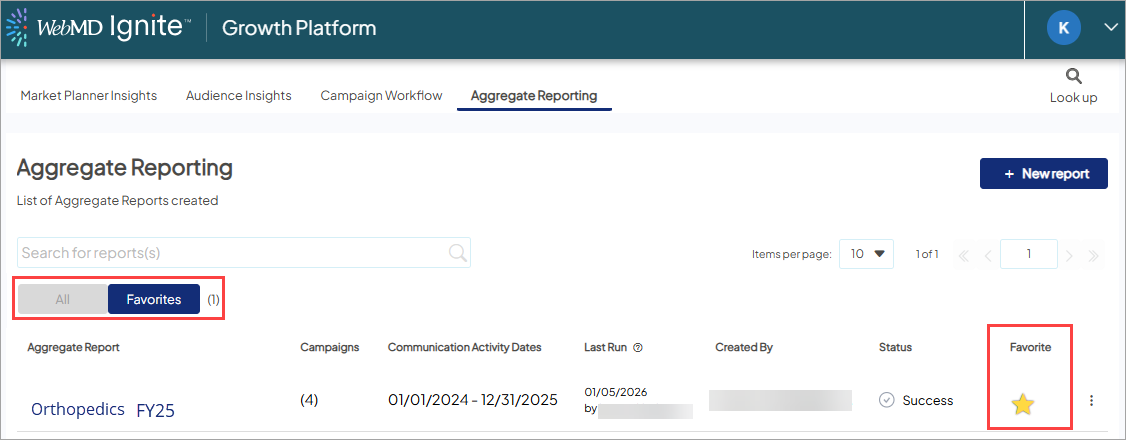
- The Aggregate Reporting landing page defaults to your Favorites view. To save time, star the reports you use for regular executive updates so they are immediately visible when you log in.
- Understand the "Overall" vs. "Objective" toggle
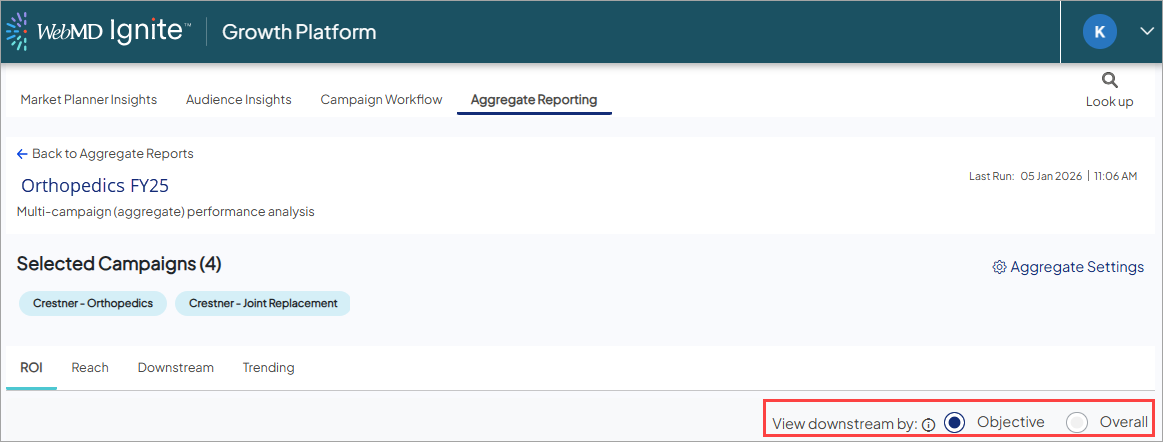
- If you notice lower-than-expected ROI, toggle your dashboard view from Objective to Overall. This removes specific filters like Service Lines or Facilities, allowing you to see every possible downstream interaction attributed to your marketing efforts, which often reveals a more significant total impact. Learn more.
Other help content
Read more
 Ignite Growth Platform
Read more
Ignite Growth Platform
Read more
Ignite Growth Platform
FAQ: When I export an SMS list, some contacts have home AND mobile numbers and BOTH are validated for SMS. Should I prioritize one over the other and why does that happen?
QuestionWhen I export an SMS list, some contacts have home AND mobile numbers and BOTH are validated for ...

