Before running your report, you must finalize its name, date range, and financial metrics.
- In the pop up that displays after saving the report, complete the following fields:
- Required
- Report Name: Name your report anything, but make it specific enough to remember the objective and purpose (e.g., “All East Region Cardiology Campaigns FY24-FY25”). Upon naming the report, Save and Run options will become available.
- Defaults that can be changed:
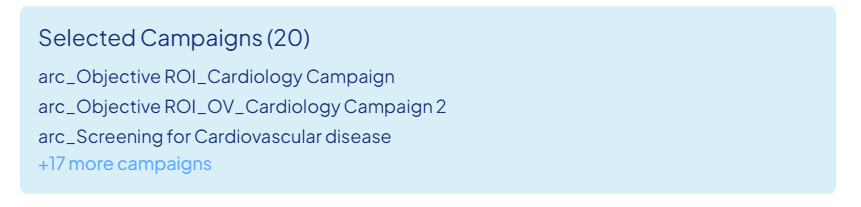
- Selected Campaigns (#): Indicates the campaigns you’ve selected for the Aggregate Report with a chance to review and go back before running your report.
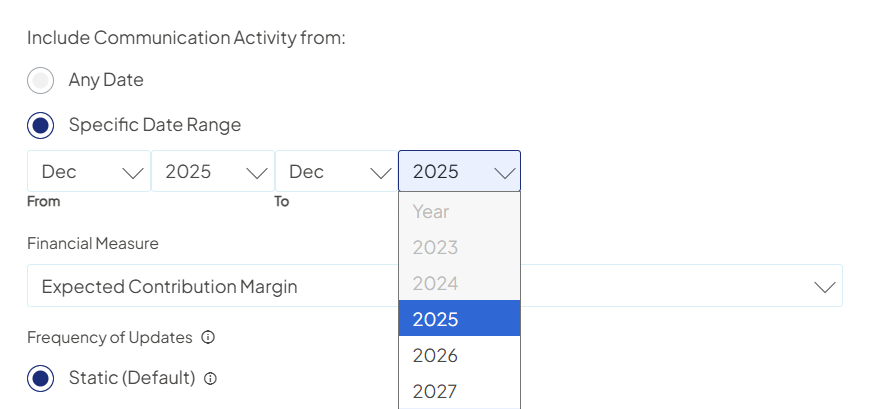
- Include Communication Activity from: Sets the Communication Activity Dates seen on your list view of the saved report.
- Any Date: Activity dates are defaulted to All Time (01/01/1900 - 12/31/7999) at the Campaign and Aggregate Report levels. For Aggregate Reports, activity date ranges are first honored at the individual Campaign Settings level, then further able to be limited within the Aggregate when populated.

- Specific Date Range: By choosing a MM/YYYY date range, all campaign touches (push communications and leads) will adhere within the time period defined by these dates. As a result, downstream will also include only visits that happened from the filtered touches. For example, you can isolate Marketing Events for a specific time period (e.g., Q1 performance only), which will filter calculated metrics like leads for ROI.
- Any Date: Activity dates are defaulted to All Time (01/01/1900 - 12/31/7999) at the Campaign and Aggregate Report levels. For Aggregate Reports, activity date ranges are first honored at the individual Campaign Settings level, then further able to be limited within the Aggregate when populated.
- Financial Measure: The system initially defaults to your organization's preferred metric (e.g., Expected Contribution Margin).
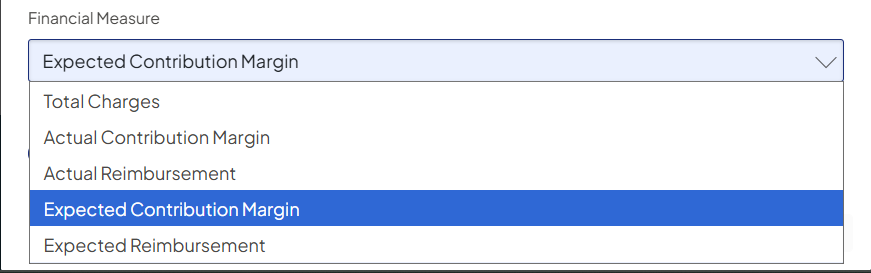
- Similar to standard campaign reporting, you have the flexibility to select a different financial metric from the dropdown at the time of running the report.
- Only one financial measure may be used per Aggregate Report because the financial measure is not honored at the campaign-level. It is calculated throughout the report for the selected campaigns in aggregate.
- Frequency Updates Ranges: Initially, you will only be able to run Static reports (this is expected to change in future releases).

- Selected Campaigns (#): Indicates the campaigns you’ve selected for the Aggregate Report with a chance to review and go back before running your report.
- Required
- Save using the following options:
- Save Report: You may select this option to simply save your pre-built report with a Status of Not Started. You will be taken back to the Aggregate Reporting list view where you can Edit, Delete, Run/Refresh, or Duplicate your Report.
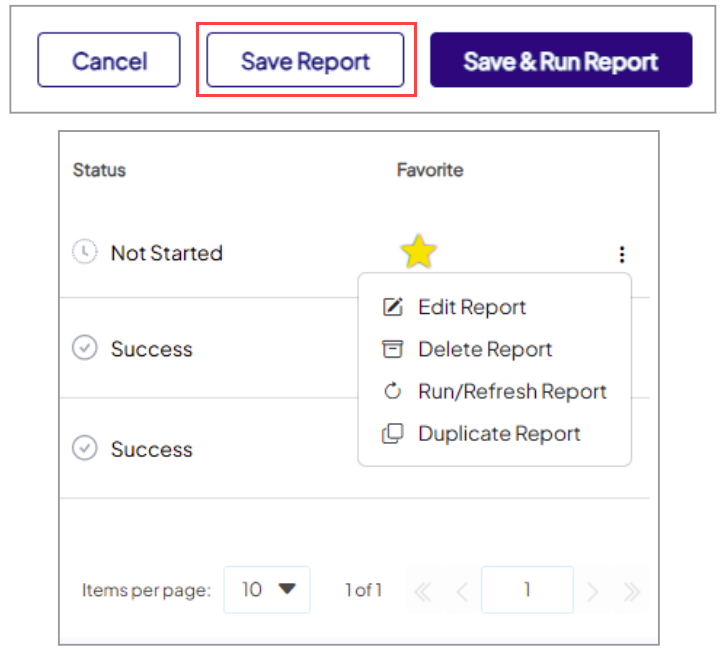
- Save & Run Report: Select this option to immediately begin running your report. You will be navigated back to the Aggregate Reporting list view to see the status of your report.

- Save Report: You may select this option to simply save your pre-built report with a Status of Not Started. You will be taken back to the Aggregate Reporting list view where you can Edit, Delete, Run/Refresh, or Duplicate your Report.
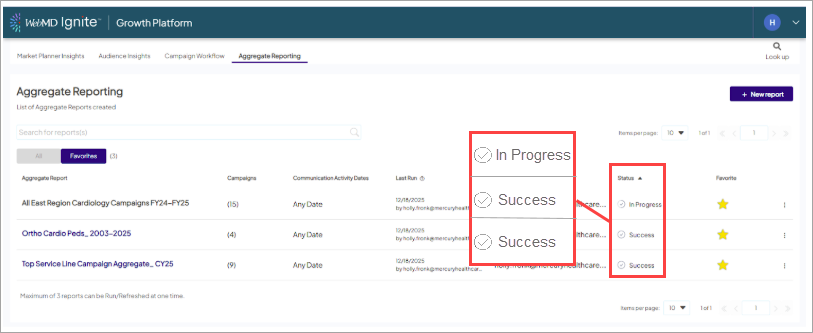

Reports marked In Progress will refresh to Success with a Last Run date once complete. Reports already with a status of Success can be opened.