Apply criteria to your Overall Audience
Drag and drop criteria
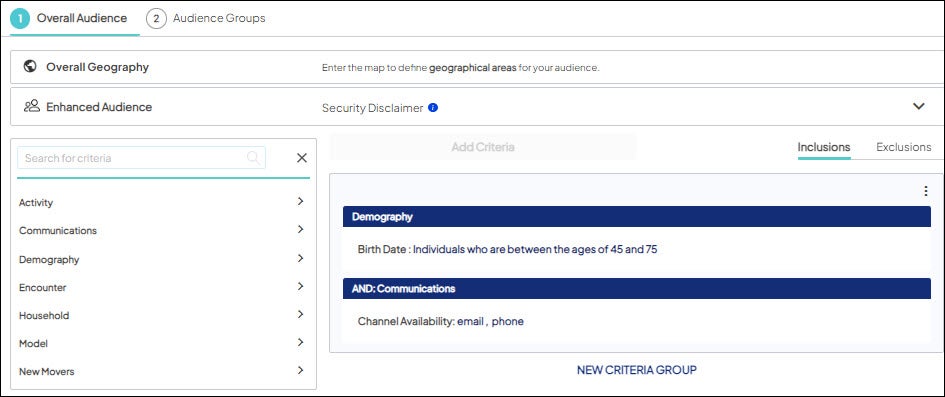
Choose Add Criteria to open the Audience Criteria Library and drag & drop a criterion to the Inclusions/Exclusions canvas.
- In a new or existing audience, on the Overall Audience tab, click Add Criteria to expand the library.
- Choose either Inclusions or Exclusions. Drag a criterion from the library and drop it on the open canvas. Learn about the logic for criteria placement.
-
Enter the specific parameters for the criterion and choose Save to apply the criterion. Learn more about each criterion’s parameters.
The metrics update to reflect the current overall audience.
-
(Optional) To change the record types included, expand “Enhanced Audience” section and update the selection (only Mastered Persons or Unmastered Persons or both).
Map-based criteria
Choose View Map to see your health system’s geographic location on a map so you can visualize the geography and select specific individuals. You can only include individuals using the map; there is no ability to exclude. The map is only available at the Overall Audience level.
- Access Audience Insights and create new/open existing audience.
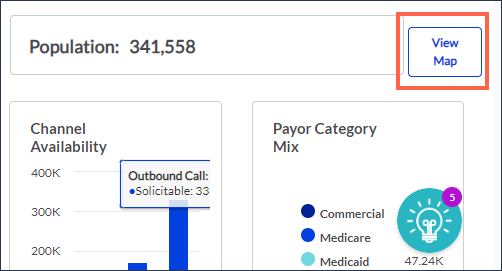
- On the Overall Audience tab, choose View Map and the map displays.
- Use one of the following criterion under Geo Criteria to include individuals based on geographic location:
- Select an area. Choose predefined geographical areas (market areas and/or postal codes) on the map to select the individuals who live in your selected predefined areas.
- Draw custom. Draw a polygon (straight-lined shape with at least three sides) of any size on the map to select the individuals who live within that outlined area.
- Set center-point. Choose a location on the map to serve as the center of your area and then choose the number of physical miles around this location to select the individuals who live within the radius of your center.
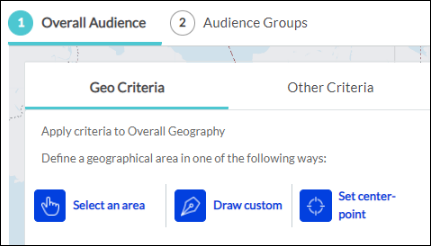
The number of individuals in the current overall audience (Population) updates automatically as you apply a map criterion or apply drag & drop criteria (choose Other Criteria). You can also choose View Metrics to switch to the metrics for the currently selected audience.
About using the center-point option
If you enter an address that is one of many addresses within a given location (e.g., a suite within a multiple business suites building), the map may, of its own accord, display another address within that building rather than the address you entered.
When multiple addresses are all part of the same building, they can have the same latitude and longitude coordinates, which is what the map uses to calculate a radius. In this scenario, the 'change' in the displayed address (from the one you entered) does not impact the actual radius calculation since the building has the same latitude and longitude coordinates.

