Audience criteria logic
Use the logic here to help you understand how to place criteria on the Inclusions/Exclusions canvas.
Criterion
When you apply a criterion, you specify parameters that individuals must meet to be selected. Each criterion contains unique parameters.
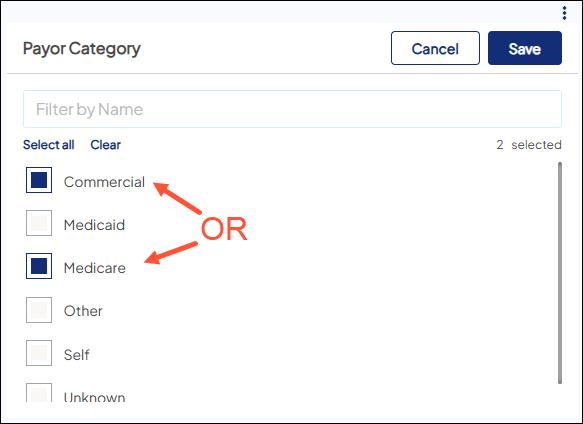
In a criterion where you specify multiple options, the logic between the selected options within the criterion is OR.
Example: If you specify both Commercial and Medicare for the Payor Category criterion, the individual can have Medicare OR commercial insurance and still be selected by the criterion.
Criterion Groups
When you want to combine the logic of several criteria to select individuals, you drop them within the same criteria group. On the Inclusions/Exclusions canvas, a criteria group is indicated visually by the gray box that surrounds them.
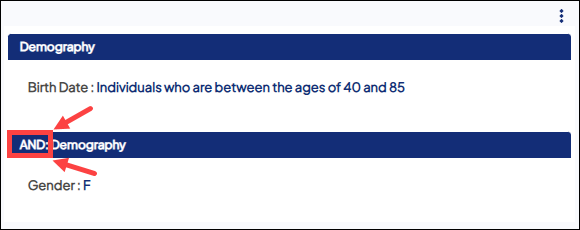
Within a criteria group, the logic between criteria is AND.
Example: If you select an age range of 40-85 for the Birth Date criterion and Female for the Gender criterion, then only women who are ages 40-85 are selected by the criteria group.
Compound Criteria Group
You can combine multiple criteria within the Encounter category or within the Activity category to build a compound criteria group. A compound criteria group ties the parameters of multiple criteria more closely than placing them in a criteria group.
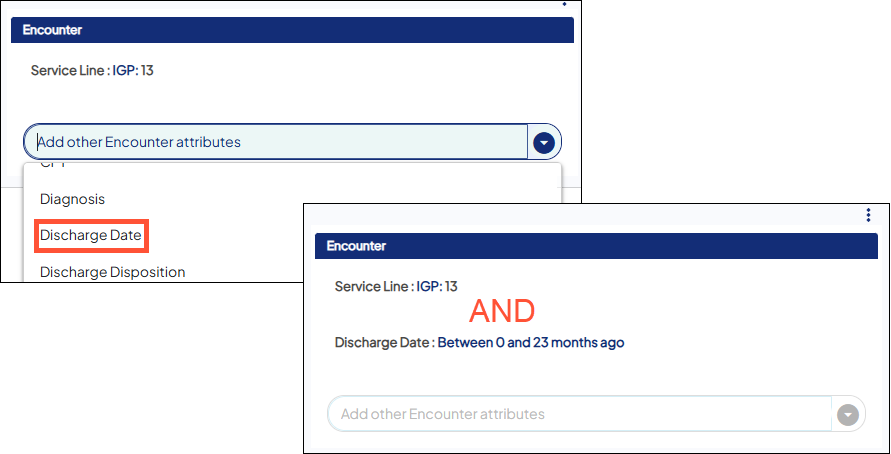
Example: After you drop and drag any criterion from the Encounter category, you have the option of adding another encounter criterion to it. Use the dropdown menu for the Add other encounter attributes... field to apply another Encounter criterion and create a compound criteria.
Within the compound criteria group, the logic between the criteria is AND. To be selected, the individual must first qualify for all criteria in the compound criteria group and then for any other criteria within the criteria group.
Example - Encounter: Create a target audience that includes individuals discharged from the Orthopedics service line in the prior 24 months.
- Select the prior 23 months, as a compound criterion to the Service Line criterion. Only individuals who were discharged from the service line of Orthopedics in the prior 24 months are selected by the compound criteria group.
- Why 23 months? Learn more in the frequently asked questions.
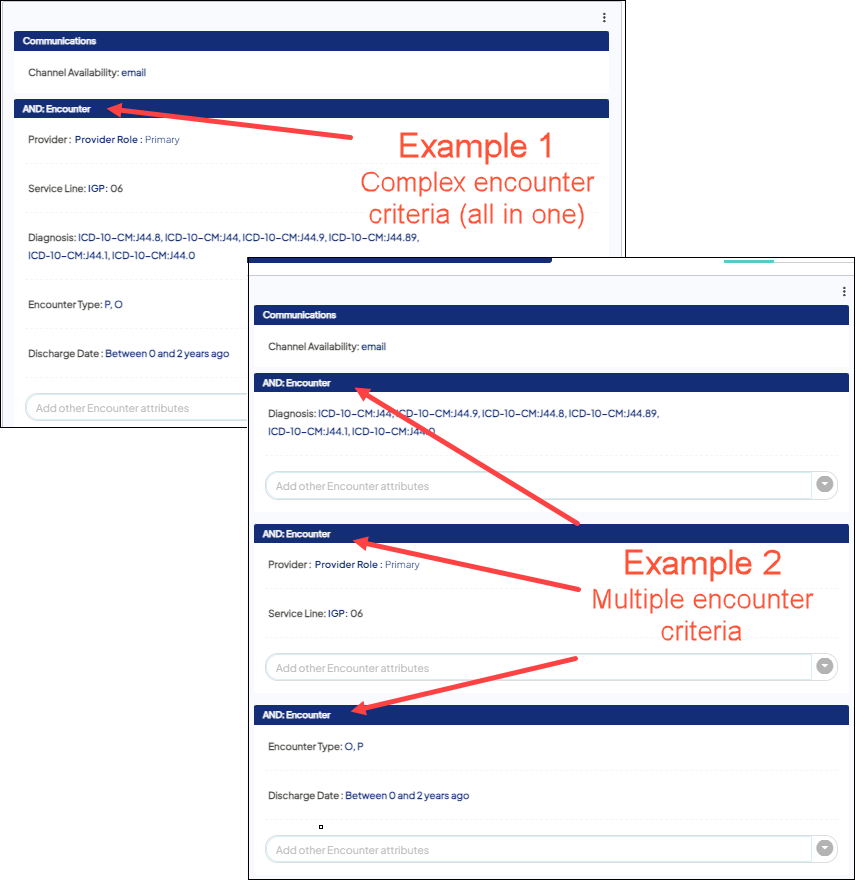
These compound criteria groups help Ignite Growth Platform translate complex criteria to target patients. Here are two examples:
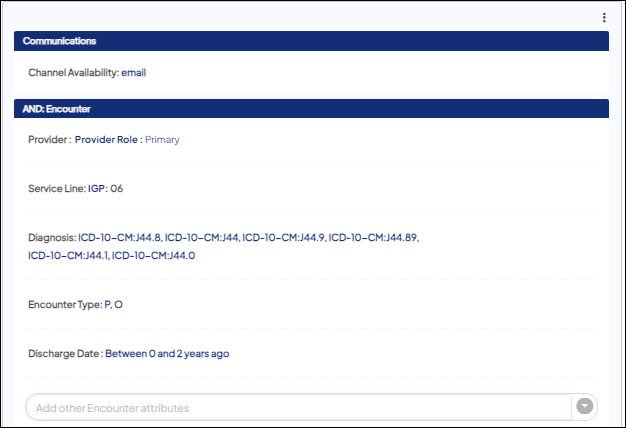
Example 1
Select an audience who had an encounter that meets all encounter criteria listed in one visit.
Criteria translation:
- The audience should be available in Email Channel.
- AND have an encounter with COPD diagnosis and a service category of General Medicine in the last three years that was either Outpatient or Physician Office.
Example 2
Individuals who meet this criteria are those who had an encounter with COPD diagnosis, had an encounter with a service category of General Medicine, and had an encounter in the last three years that was either Outpatient or Physician Office. These last three bullet points of encounter criteria do not need to be met within one visit. Each bullet point could be met in different encounters.
Criteria translation:
- The audience should be available in Email Channel.
- AND have an encounter with COPD diagnosis
- AND have an encounter with a service category of General Medicine
- AND have an encounter in the last three years that was either Outpatient or Physician Office
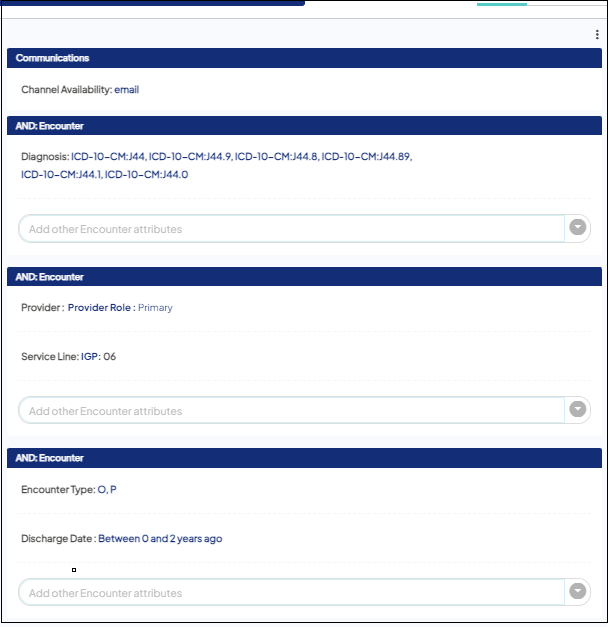
Example 1 selects those that had one complex encounter. Example 2 selects various types of encounters.
Inclusions/Exclusions Canvas
The selected individuals are included or excluded based on where you drop the criterion:
- If you drop the criterion on the Inclusions canvas, the selected individuals are included in the audience -OR-
- If you drop the criterion on the Exclusions canvas, the selected individuals are excluded from the audience.