Audience Criteria Library
The Audience Criteria Library contains criteria you use to include or exclude individuals from your target audience. Each criterion has unique parameters you specify when applied to an audience. Open the sections below for descriptions of each criteria type to help you determine which options should be applied to capture the right individuals in your audience.
Learn more about our criteria logic and how to apply criteria.

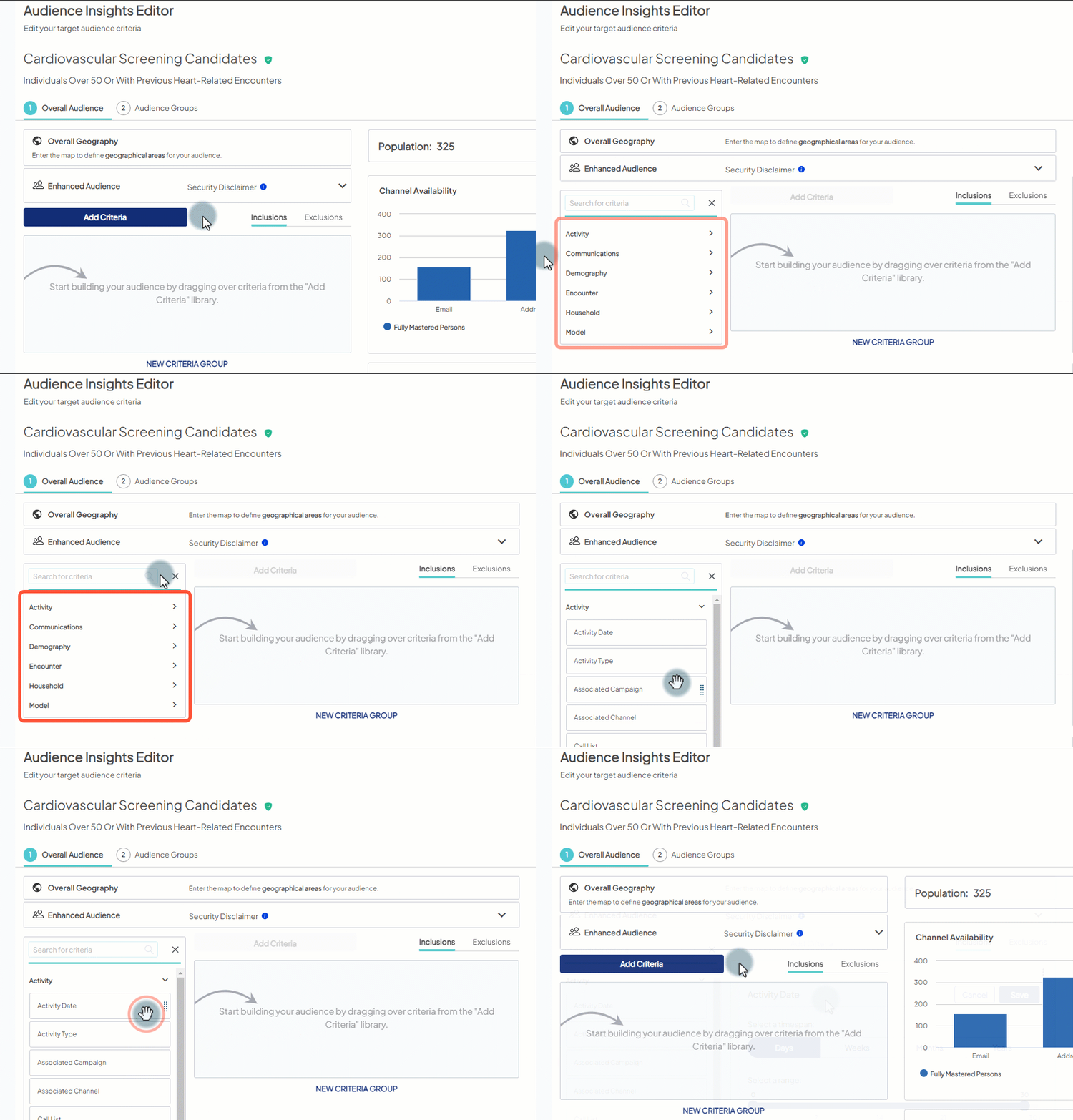

| Criteria | Definition | Data Source |
|---|---|---|
| Activity Date |
Select individuals’ communication activity or response activity occurring X and Y <timespan> prior to the current date, where:
|
Forms, HRAs, Custom Activity, Call Center, IGP Campaign activity (direct mail send), Eloqua, Salesforce Marketing Cloud |
| Activity Type |
Select individuals based on the type of communication activity or response activity. Select one or more of the following:
|
Forms, HRAs, Custom Activity, Call Center, IGP Campaign activity (direct mail send), SMS Activity, Eloqua, Salesforce Marketing Cloud |
| Associated Campaign |
Select individuals with communication activity or response activity associated with specified campaign name. Not all activity is associated with a campaign.
|
Ignite Growth Platform |
| Associated Channel | Select individuals with communication activity or response activity associated with the selected marketing channel(s): Direct Mail, Display, Email, Paid Search. | Ignite Growth Platform |
| Call Disposition | A client defined value used to track the outcome of the call. | Call Center Data |
| Call List | The ID of the call list export generated by IGP. This ID is found on the outbound call list export and must be resubmitted as a call record in the Call Center data. | Call Center Data |
| Call Type | A standard code defining the type of call. | Call Center Data |
| Content Request | Name of content submitted in the call center extract. | Call Center Data |
| Custom Activity | ‘Activity Name’ submitted by client in the Custom Activity format. | Custom Activity File |
| Direct Mail List | Select individuals on the specified direct mail list who were sent direct mail. | Ignite Growth Platform |
| Email Name | Name of email asset integrated from MA (Eloqua or SFMC). | Eloqua and Salesforce Marketing Cloud |
| Event Registration | Name of the event submitted in the call center extract with the registration outcome captured also. | Call Center Data |
| Form Name | Select individuals who submitted the specified online form. | Eloqua and Salesforce Marketing Cloud |
| Health Risk Assessment Location | The location promoted in the HRA, submitted via the HRA API. | Health Risk Assessment Data |
| Health Risk Assessment Name | Select individuals who submitted the specific health risk assessment (HRA) you select (based on name) and (optionally) whose results fell within the risk levels you select. | Health Risk Assessment Data |
| Provider Referral | The name of the provider and referral outcome (transfer, information Only, etc.) supplied in the call center extract. | Call Center Data |
| Service Referral | Name of the service referred and the outcome of that referral (Information Only, Referral Given, etc.) supplied in the call center extract. | Call Center Data |
| SMS Send Code | Originating number (number the SMS was sent from). This may be a short code (e.g., "Text HEALTH to 30303 for more information" or a full, normal phone number, depending on what is used). | SMS Activity Data |
| Criteria | Definition | Data Source |
|---|---|---|
| Control Group (select to exclude in Audience Settings) | Select individuals who are members of the enterprise control group. | Ignite Growth Platform |
| Do Not Solicit | Select individuals based on Do Not Solicit (DNS) status (select to include in Audience Settings). | EMR, Solicitable List, Call Center, Eloqua, Salesforce Marketing Cloud |
| Channel Availability |
Select individuals who are available for marketing (based on their solicitable status) via the selected channels. Choose one or more of the following:
Volume for SMS represents contacts with an SMS enabled-phone number and who’ve given marketing consent. With this strict eligibility, counts may be lower initially but will increase as you grow your opted-in audience.
|
EMR, Solicitable List, Call Center, Eloqua, Salesforce Marketing Cloud, Member lists, Custom Activity lists, SMS activity lists, SMS consent lists. |
| Member Lists |
Search and select one or more of the member lists WebMD Ignite has loaded, on your behalf, to the platform. Members of the selected list(s) are then, based on how you apply the criterion, included in or excluded from your target audience. Your health system can send member lists formatted using the Data Submission Guide. Examples of member lists include: event attendees, class attendees, employees of your health system, etc. The Member Lists criterion only displays once loaded member lists have been added to the platform.
|
Member List File |
| Criteria | Definition | Data Source |
|---|---|---|
| Birth Date |
Age Range Select individuals based on age using the Age Range tab.
By default, every target audience you create, regardless of creation method, excludes minors (individuals aged 0-17). By law, your health system cannot market to minors directly. Do not alter or remove this default criterion without careful consideration. Learn more about including minors in a target audience.
Birth MonthSelect individuals based on the month in which they were born using the Birth Month tab. Choose one or more months. |
EMR, Consumer Market List, Call Center Data, Health Risk Assessment Data, Member List, Custom Activity List, also informed/created by form data integrated from Eloqua/SFMC. |
| Deceased |
Select individuals based on whether the individual is marked deceased. By default, every target audience you create (regardless of creation method) is set up to exclude the individuals who are marked as deceased. Do not alter or remove this default criterion.
|
EMR (deceased date & discharge disposition), Solicitability list, Consumer Market List, Call Center Data. |
| Education | Select individuals with the selected level or levels of education (e.g., Completed College, Completed High School, etc.). | Consumer Market List |
| Gender | Select individuals based on gender, defined as assigned sex at birth. | EMR, Consumer Market List, Call Center Data, HRA data, Member List, and Custom Activity List. |
| Gender Identity | Select individuals based on your organization’s own supplied values for gender expression. | EMR |
| Head of Household | Select individuals identified as the head of his/her household. We assign a head of household to each household using proprietary logic based on age and gender. | Informed by all sources (addresses and names of individuals) and calculated by Ignite Growth Platform. |
| Household Income Range | Select individuals with a household income that falls within one of the specified range or ranges. | Consumer Market List, and calculated by Ignite Growth Platform. |
| Language | Select individuals who speak the selected language or languages (e.g., English, French, Italian, etc.). | Consumer Market List |
| Marital Status | Select individuals based on marital status (e.g., Single, Divorced, Married, etc.). | EMR and Consumer Market List, and Call Center Data |
| Market Area |
Select individuals residing within the ZIP codes contained within the selected market area or areas. Market areas are custom to your health system and are comprised of the ZIP codes you have previously configured. As an alternative, choose View Map to view your health system’s geographic location on a map. On the map, use one of three available options to visualize and select individuals for inclusion in the overall audience. Learn more.
|
Ignite Growth Platform supplied by client. |
| Patient Payor Name | Payor names supplied at the encounter level by the client. Non-standard values/client defined. | EMR |
| Preferred Language | Select individuals who speak specific language or languages | EMR |
| Postal Code |
Select individuals residing within the selected ZIP code or codes. Got a long list of postal codes you need to include in multiple criteria or audience groups? Use a ; between each postal code and copy-paste postal codes into the field.
As an alternative, choose View Map to view your health system’s geographic location on a map. On the map, use one of three available options to visualize and select individuals for inclusion in the overall audience. Learn more.
|
EMR and Consumer Market List, Call Center Data, Eloqua, HRA data, Member List, and Custom Activity List. |
| Race | Select individuals based on race (e.g., Asian, African American, Caucasian, Hispanic/Latino, etc.). | EMR |
| Criteria | Definition | Data Source |
|---|---|---|
| Admit Date |
Select individuals associated with visits that have an admission date between X and Y <timespan> prior to the current date, where:
|
EMR |
| Admission Medical Service | Select individuals associated with visits that have the selected admission type(s). | EMR |
| Admission Source | Select individuals associated with visits that have the selected admission source or sources (e.g., referred from clinic, transferred from hospice care, born inside hospital, emergency room, etc.). | EMR |
| CPT | Select individuals associated with visits that have the selected CPT codes. | EMR |
| Diagnosis | Select individuals associated with visits that have the selected ICD-9 and/or ICD-10 codes. | EMR |
| Discharge Date |
Select individuals associated with visits that have a discharge date between X and Y <timespan> prior to the current date, where:
|
EMR |
| Discharge Disposition | Select individuals associated with visits that have the selected disposition or dispositions (e.g., released to home, discharged to another hospital, expired, left against medical advice, etc.). | EMR |
| Encounter Type | Select individuals associated with visits of the selected type or types. Choose from Emergency Room, Inpatient, and/or Outpatient. | EMR |
| Financial Class | Select individuals associated with visits that have the selected financial class or classes (e.g., Medicaid, Commercial Insurance, Self Pay, etc.). | EMR |
| Facility | Select individuals associated with visits that occurred at the selected facility or facilities. | EMR, or Facility File |
| MSDRG | Select individuals associated with visits that have the selected MSDRG code or codes. | EMR |
| Payer Category |
Select individuals whose most recent visit was with the selected actual payor category or categories. Best practice is to use the Payor Category model for both patients and non-patients, instead of the Encounter Payor Category filter for patients, since only the last visit is referenced for payor category assignment. Example: Patient's most recent visit was for Workers Compensation - they'd be added to the "Other" category even though the vast majority of their encounter records have Commercial payor. |
EMR |
| Patient Payer Name |
Select individuals associated with visits with the selected payor name. Patient payor name is derived from the most recent payor name provided. Best practice is to use the Payor Category model for both patients and non-patients, instead of the Encounter Payor Category filter for patients, since only the last visit is referenced for payor category assignment. Example: Patient's most recent visit was for Workers Compensation - they'd be added to the "Other" category even though the vast majority of their encounter records have Commercial payor. |
EMR |
| Procedure |
Select individuals associated with visits that have the selected ICD-9 procedure, ICD-10 procedure, and/or HCPCS codes. Got a long list diagnosis or procedure codes you need to include in multiple criteria or audience groups? Use this copy-paste shortcut.
|
EMR |
| Provider |
Select individuals who visited with the providers who meet the parameters you specify. You can specify one or more of the following parameters - see the Parameter Logic section below for more on the logic between the parameters:
|
EMR |
| Service Line | Select individuals associated with visits that fall within the selected service line or service lines. | Ignite Service Lines are calculated by IGP using medical codes (DX, MSDRG, PX). |
| Sub Service Line |
Select individuals associated with visits that fall within the selected sub service line(s).
|
EMR |
| Criteria | Definition | Data Source |
|---|---|---|
| Child Count |
Select all members of the household based on the presence of children.
|
Consumer Market List |
| Homeowner | Select all members of the household based on the type of home ownership, such as Probable Owner, Definite Owner, etc. | Consumer Market List |
| Household Age Bands | Select all members of the household based on whether the household contains members who fall within the selected age range or ranges, such as Age between 0 to 2, Age between 3 to 5, etc. | Consumer Market List |
| Household Interests | Select all members of the household based on interests (e.g., Cancer Donor, Natural Foods, Sports Participation, Weight Control, etc.) members of the household may have. You can select one or more interests. | Consumer Market List |
| Household Niches | Select all members of the household based on the characteristics of your selected Epsilon® Niches 5.0™ (see that criteria below). You can select one or more niches. This criterion can be used in conjunction with other criteria in the library, including patient and consumer risk models. Do not add additional demographic criteria to your target audience when you apply the Household | Consumer Market List |
| Net Worth | Select all members of the household based on the household's estimated net worth, as modeled by a third-party data resource. Net worth is defined as the household's assets minus assets, or, in other words, everything owned by the household minus the household's debt. | Consumer Market List |
| Occupation | Select all members of the household based on the occupation (e.g., business owner, farmer, clerical, etc.) of the head of household. | Consumer Market List |
| Criteria | Definition | Data Source |
|---|---|---|
| Consumer Risk |
Select individuals who meet the level of risk (based on the selected at-risk Category or Categories) for the specific disease or health condition (based on the selected consumer risk model). Be sure to select a model and the at-risk Category percentage(s). Best practice: Apply only 1 risk model per audience based on the campaign's objective. |
Informed by all data sources, calculated by Ignite Growth Platform |
| Patient Risk |
Select individuals who meet the level of risk (based on the selected at-risk Category or Categories) for the specific disease or health condition (based on the selected patient risk model). Be sure to select a model and the at-risk Category percentage(s). Best practice: Apply only 1 risk model per audience based on the campaign's objective. |
Informed by EMR, calculated by Ignite Growth Platform |
| Payor Category | Select individuals who fall into the selected Payor Category model or models. | Informed by EMR, calculated by Ignite Growth Platform |
| Perceptual Profile | Select individuals who fall into the selected Perceptual Profile. | Informed by all sources, calculated by Ignite Growth Platform |
| Recency Frequency | Select individuals who fall into the selected segment or segments. Learn more about our proprietary models. | EMR, calculated by Ignite Growth Platform |
WebMD Ignite can purchase and load on your behalf the demographic information of individuals who’ve reported a new address to the U.S. Postal Service. Use the New Movers criteria to build a target audience containing individuals who’ve recently moved to your market area. As new movers, these individuals are likely seeking healthcare services and facilities within driving range of their new home.
This criteria will only display if your health system chooses to purchase data related to new movers.
| Criteria | Definition | Data Source |
|---|---|---|
| Area moved from | Select individuals who moved from the postal code(s) or market area(s) you specify. | Consumer Market List |
| Area moved to |
Select individuals who moved to the postal code(s) or market area(s) you specify. When you build a target audience intended for a New Movers campaign, we suggest you always include this criterion to target individuals who moved to your health system’s service area.
|
Consumer Market List |
| Distance moved | Select individuals based on the number of miles they moved. The number is set by you and must be greater than 0 to ensure actual movers are included. | Consumer Market List |
| Move date |
When you build a target audience intended for a New Movers campaign, we suggest you always include this criterion to limit the audience to individuals who recently moved.
Select individuals who reported an address change within X and Y <timespan> prior to the current date, where:
|
Consumer Market List |
Niches 5.0™, released by Epsilon®, Niches 5.0 is a powerful clustering system that classifies every household in our national consumer marketing file into one of 26 meaningful groups. Use Niches 5.0 to gain deeper customer insights, identify your best customer or prospect audiences and develop tailored messaging and offers. Niches 5.0 segments are available for audience selection and activation across all channels.
You can use the Household > Household Niches criterion to apply the powerful logic of Niches 5.0 in selecting the households in the platform that share the same characteristics as your chosen niche(s). You can use the Household Niches criterion in conjunction with other criteria in the library, including patient and consumer risk models. We recommend, however, you do not add additional demographic criteria to your target audience when you apply the Household Niches criterion.
Niches Directory
Learn more about each niche available for selection in the Household > Household Niches criterion here (published by Epsilon).