Apply criteria to an Audience Group
- On the Audience Groups tab, create an audience group if you have not already done so. You must have at least one audience group before the Add Criteria button and Inclusions/Exclusions canvas are enabled for use.

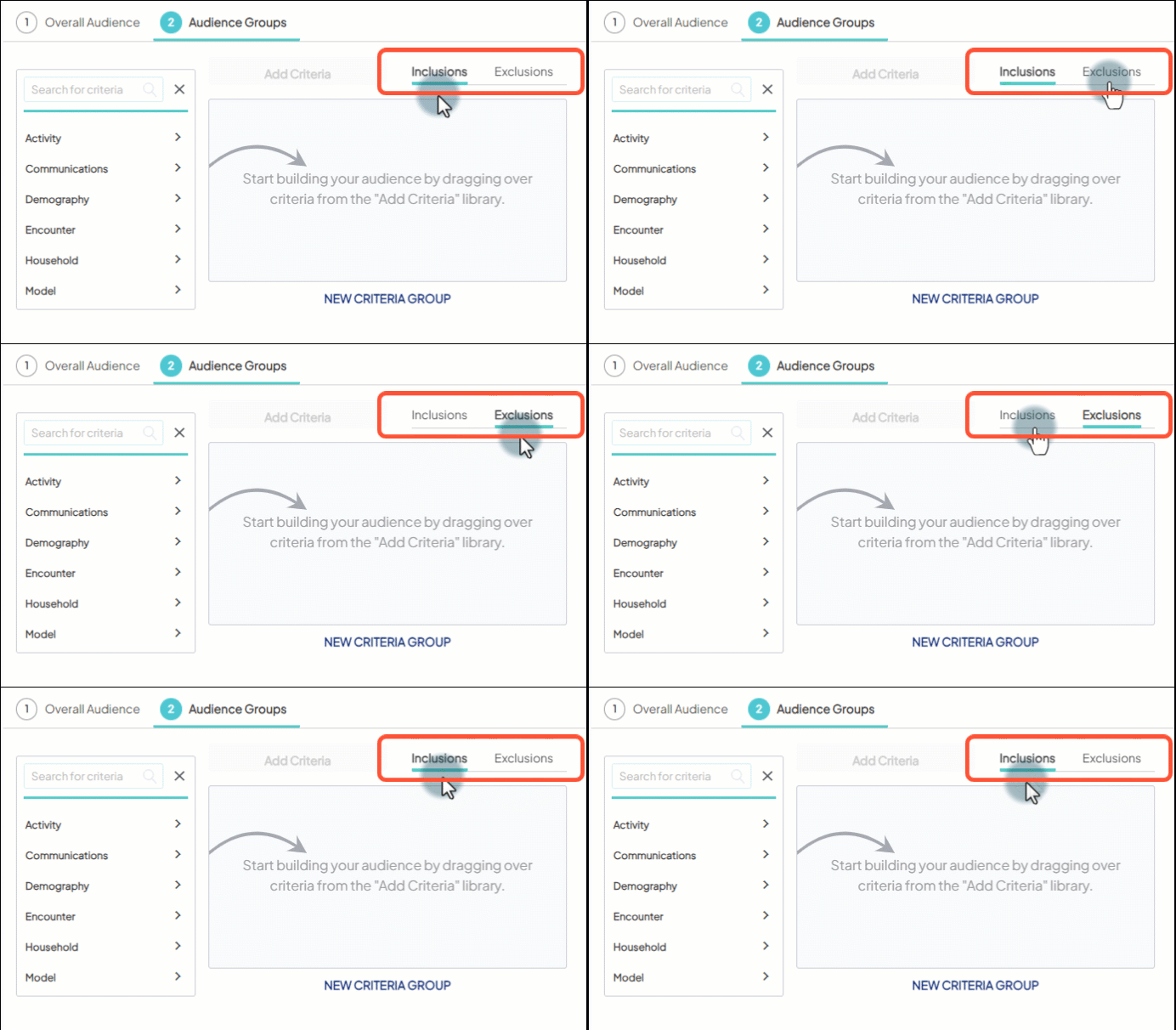
The inclusions canvas is open by default. If you would like to apply criteria to exclude individuals, open the exclusions canvas tab.
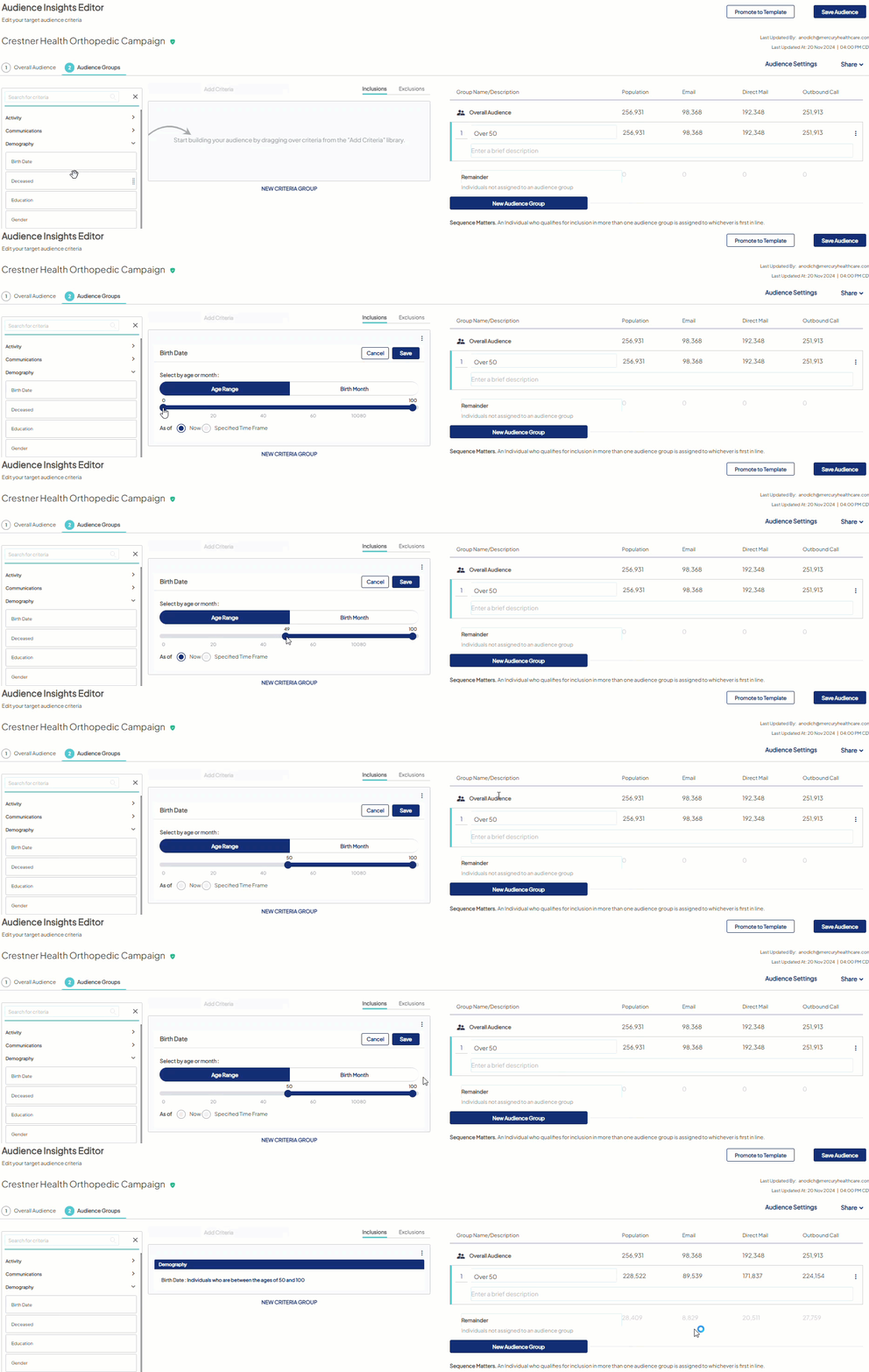
- Choose Add Criteria to expand the criteria library. Drag the desired criterion from the library and drop it on the open canvas. Learn about the logic for criteria placement.
- Enter the specific parameters for the criterion and choose Save to apply the criterion. Learn more about each criterion’s parameters.
The shield icon will carry forward from the upfront person type selection made in the prior audience list creation step.
- Click Save, the group’s metrics change according to the audience group rules.
Need to create multiple Audience Groups with similar criteria? Just duplicate the first group a few times, then adjust each as needed.

