Create a target audience
Use 1 of 3 options to create a target audience:
- Choose an existing audience
- Create a new audience
- Use a Smart Template for guided assistance.

Existing Audience
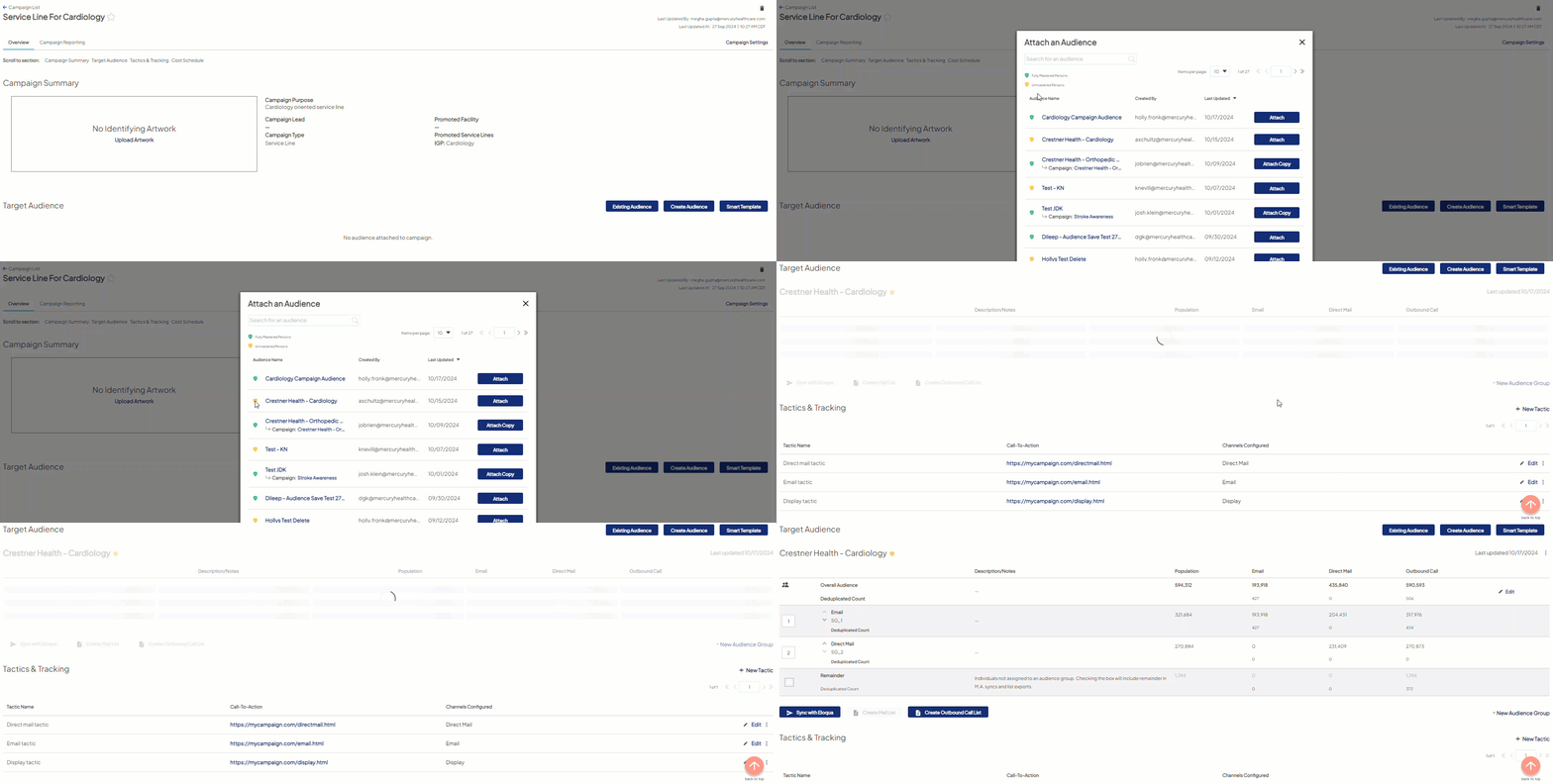
Use a copy of an existing audience as a starting point for a new audience. You can select any audience to copy - it’s not limited to audiences you’ve created.
- Go to Campaign Workflow and create new/open existing campaign.
- In Target Audience, choose Existing Audience.
- If needed, use the Search field to find the desired audience.
- Choose Attach Copy for the selected audience. The new audience opens in the Audience Insights Editor, using the source audience's name appended by the word Copy.
- Make updates/edit if needed.

Create new Audience
Use this option to create a new audience without any pre-applied criteria. With this option, you need to choose and apply all the criteria to select for the individuals in your audience. Use this option to create a new audience without any pre-applied criteria. With this option, you need to choose and apply all the criteria to select for the individuals in your audience.
- Go to:
Campaign Workflow and create a new campaign/open an existing.
OR
Audience Insights. - Under Audience Insights, choose Create Audience.
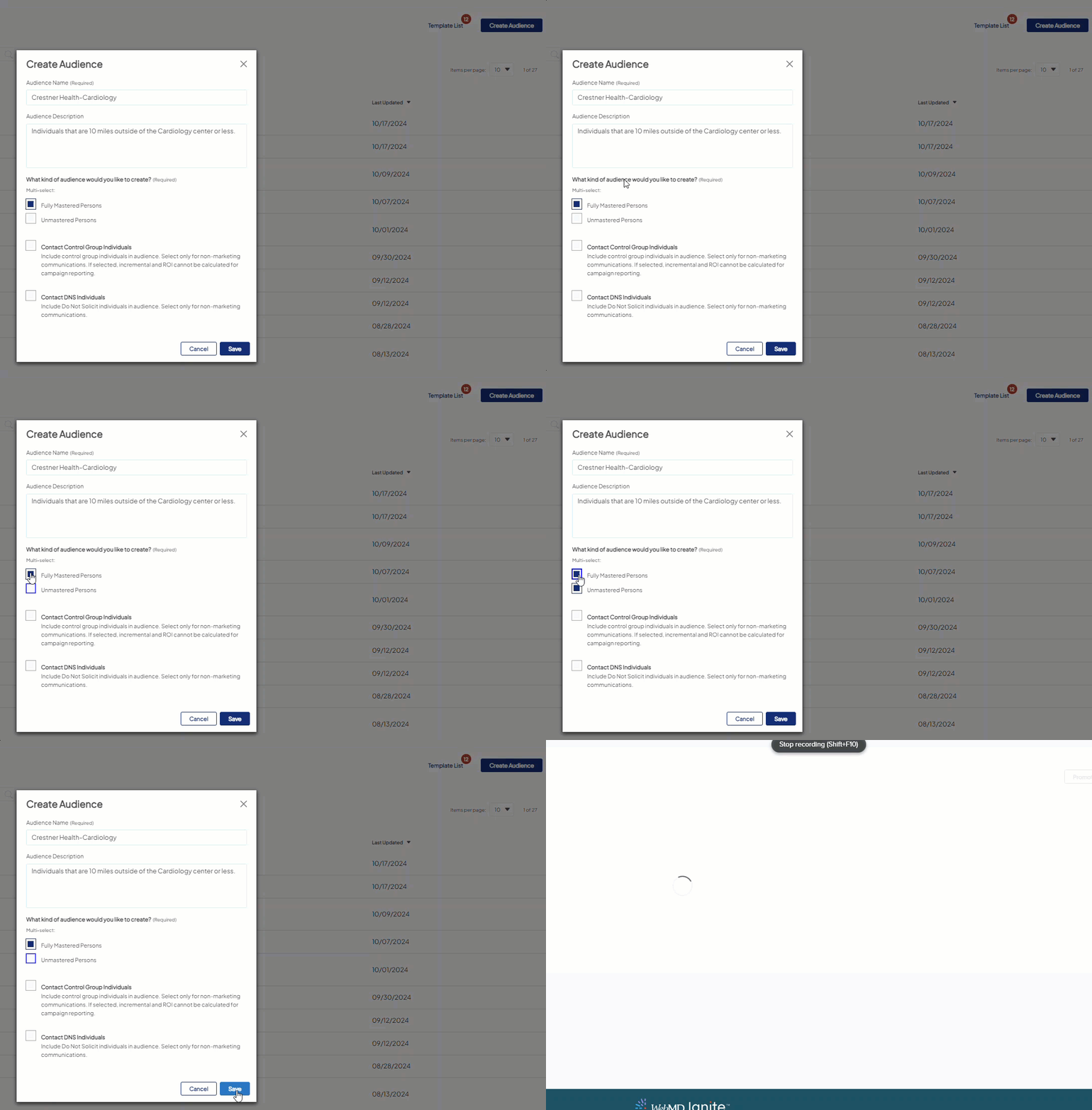
- When prompted, enter a name for the audience (required).
- If desired, enter a free-text description of the audience (optional) and/or alter the kind of audience you would like to create by selecting from the following options: Mastered and/or Unmastered Persons, and Contact Control Group Individuals. Learn more about audience settings.
- Choose Save. Your new audience opens in the Audience Insights Editor. Apply criteria as needed.
Smart Template
Use a Smart Template to select an audience using a set of pre-configured criteria. In developing Smart Templates, WebMD Ignite selects the criteria to pre-configure in a given template based on our healthcare marketing experience and industry best practices. Learn more about Smart Templates.
- Go to:
- Campaign Workflow and create new/open existing campaign. -OR-
- Audience Insights
- In Audience Insights, choose Smart Template.
- Choose Start.
- When prompted, select the specifics for the template.
- When prompted, enter a name for the audience (required).
- If desired, enter a free-text description of the audience (optional) and select from the following options:, Mastered and/or Unmastered Persons or both, and Contact Control Group Individuals option. Learn more about audience settings.
- Choose Save. Your new audience opens in the Audience Insights Editor. Apply criteria as needed.
 Smart templates are a great starting point for service line/sub-service line recommended criteria; however, they are typically targeting only prospects OR only patients. If the goal is to create an audience that includes both patients and prospects, changes/updates will need to be made in Audience Insights.

