Specify audience settings
The Audience Settings window contains several fields and options that impact the target audience as whole.
Access audience settings
You access and edit these settings in the following workflows:
- New audience. By default, you're prompted to enter/specify audience settings when you create a new target audience using the Create Audience or Smart Template options in the Audience Insights Editor (accessed via Campaign Workflow or Audience Insights).
- Existing audience. You can edit existing audience settings when you open an existing target audience (accessed via Campaign Workflow or Audience Insights) and choose Audience Settings.
When you edit these settings, be sure to click Save to save your edits.
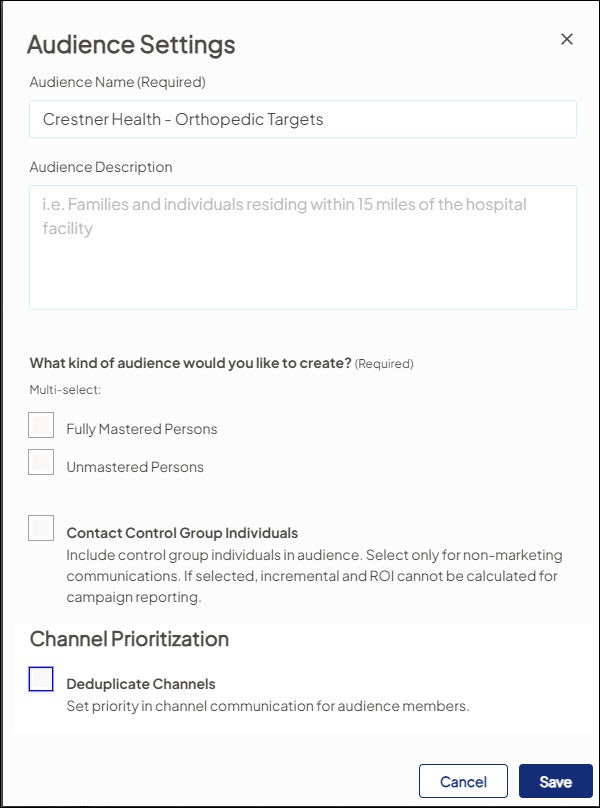
Fields/options
Audience Name (Required)
Enter free-text as the name of the audience.
Audience Description
Enter free-text to describe more fully the purpose/function of the audience. You can use the description to help you understand the audience or differentiate it from others in the future.
What kind of audience would you like to create? (Required)
Choose if you want to contact only Mastered Persons, Mastered Persons and Unmastered Persons, or only Unmastered Persons.
- Is it a general message that is relevant to all targets, even if not a Mastered Person?
- Is the campaign a follow-up to a previous campaign?
- For example, retargeting/nurturing Unmastered Persons (aka leads) who completed a form which required only an email address or telephone number.
- For example, retargeting/nurturing Unmastered Persons (aka leads) who completed a form which required only an email address or telephone number.
Contact Control Group Individuals
By default, this option is not selected so individuals in the enterprise control group are excluded from the audience.
To include enterprise control group members in your audience, select this option. When you select this option, the number of individuals in your audience increases to reflect the addition of the control group members.
Alter the default behavior of this option only for non-marketing communications.
Deduplicate Channels (under Channel Prioritization)
Only available when you open the Audience Settings window for an existing audience. Use this option to deduplicate the individuals in an audience so they fall into only one marketing channel for contact. You can also prioritize the order of channels that audience members fall into first, second, etc.