Use the Risk Model Selector
-
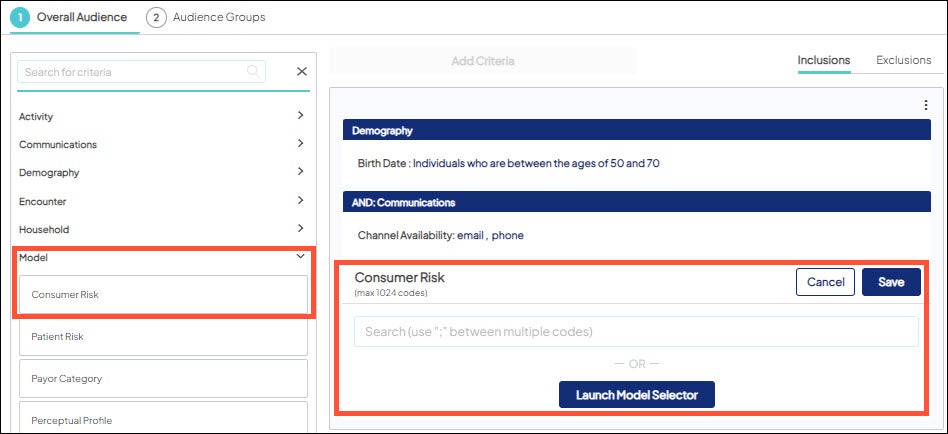
After creating a new/opening an existing audience (learn more), on the Overall Audience or Audience Groups tab, click "Add Criteria" button
 You can either include individuals or exclude individuals in your audience. By default, the Inclusions canvas is open.
 - In the criteria library, choose Model.
- Drag/drop either the Consumer Risk or the Patient Risk criterion.
- Click "Launch Model Selector".
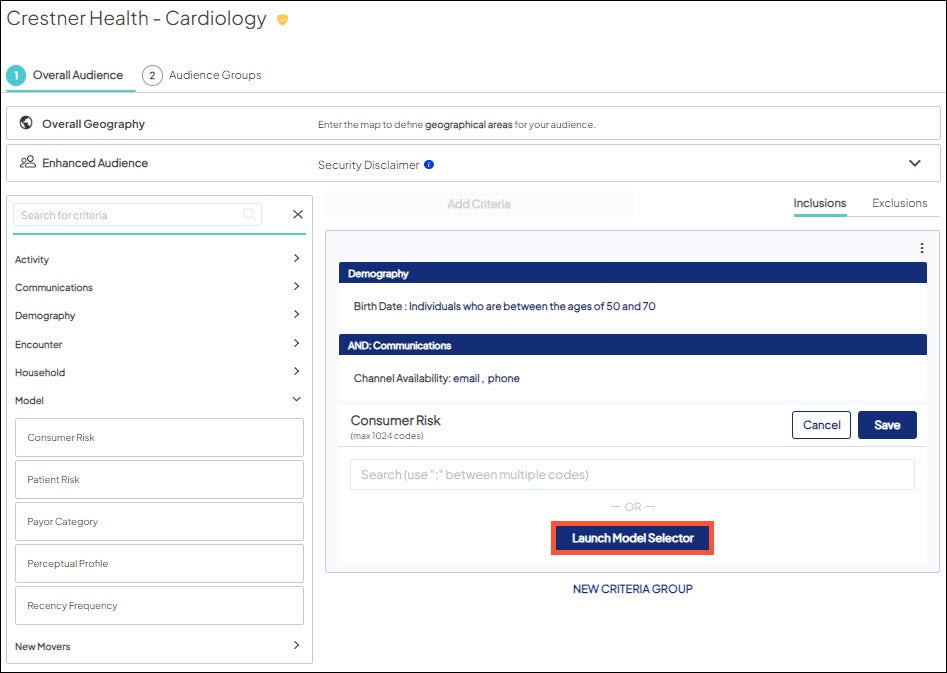
- Select between the following options:
- For a service line-based or broadly focused campaign, specify the service lines and/or visit types on which to base suggested models. Go to the step-by-step instructions.
-OR-
-
If your campaign’s medical objective is more granular/specific, specify the diagnosis, procedure, and/or MSDRG medical codes on which to base suggested models. Go to the step-by-step instructions.
 Use 1 model per audience. Which to choose depends on the campaign's objective and available predictive models.
 Use service lines and/or visit types to suggest models
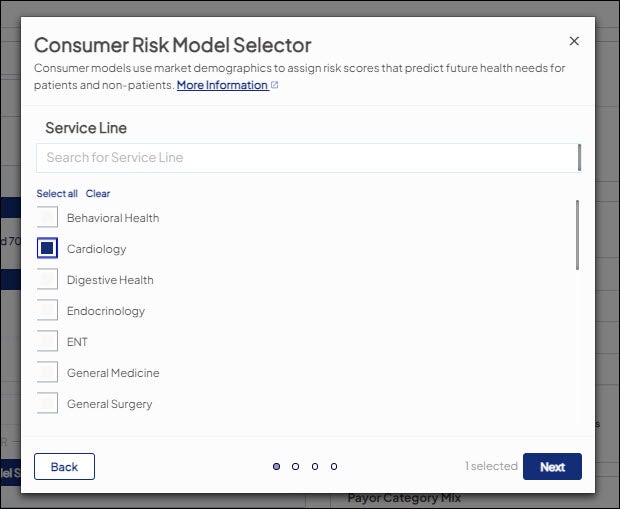
For a service line-based or broadly focused campaign, select specific service lines and/or visit types. Based on those selections, risk models are recommended.
-
Select one or both of the following options: Service and Sub Service Line and/or Visit Type > click Next and go to step 2 (depending on whether you're using Service Lines or Visit Types.
Your choice here drives the next prompts in the workflow. Once you choose one of these buttons, the medical code-related options are no longer available. Throughout this workflow, use the Back button to return to prior steps.
For Service Line and Sub Service Line option: you are prompted to select service line(s), followed by sub-service lines.
- Click one or more service lines related to the campaign objective from the list > click Next.
- Optional - Click one or more sub-service lines related to the campaign objective from the list (displayed based on your previously selected service lines) > click Next.
- Click Skip if a sub-service line isn't selected,
For Visit Types option: you are prompted to choose one or more visit types.
- Choose one of the following and then click Next:
- Emergency
- Outpatient
- Inpatient
A summary of your selections displays.
- Click Find Models to view the suggested risk models based on your selections.
If no models are suggested, use the Back button to move back in the workflow to alter your selections or contact your account representative for assistance. Learn about the logic behind the suggested model list.
- Select the risk model(s) to apply to your target audience from the list of results.
- Click Finish (the Risk Model Selector workflow closes).
- Save your selected risk models and risk levels to your audience. Learn how.
Use medical codes to suggest models
For a granular campaign, select specific ICD-10 diagnosis, ICD-10 procedure, and/or MSDRG medical codes. Based on those selections, we suggest risk models.
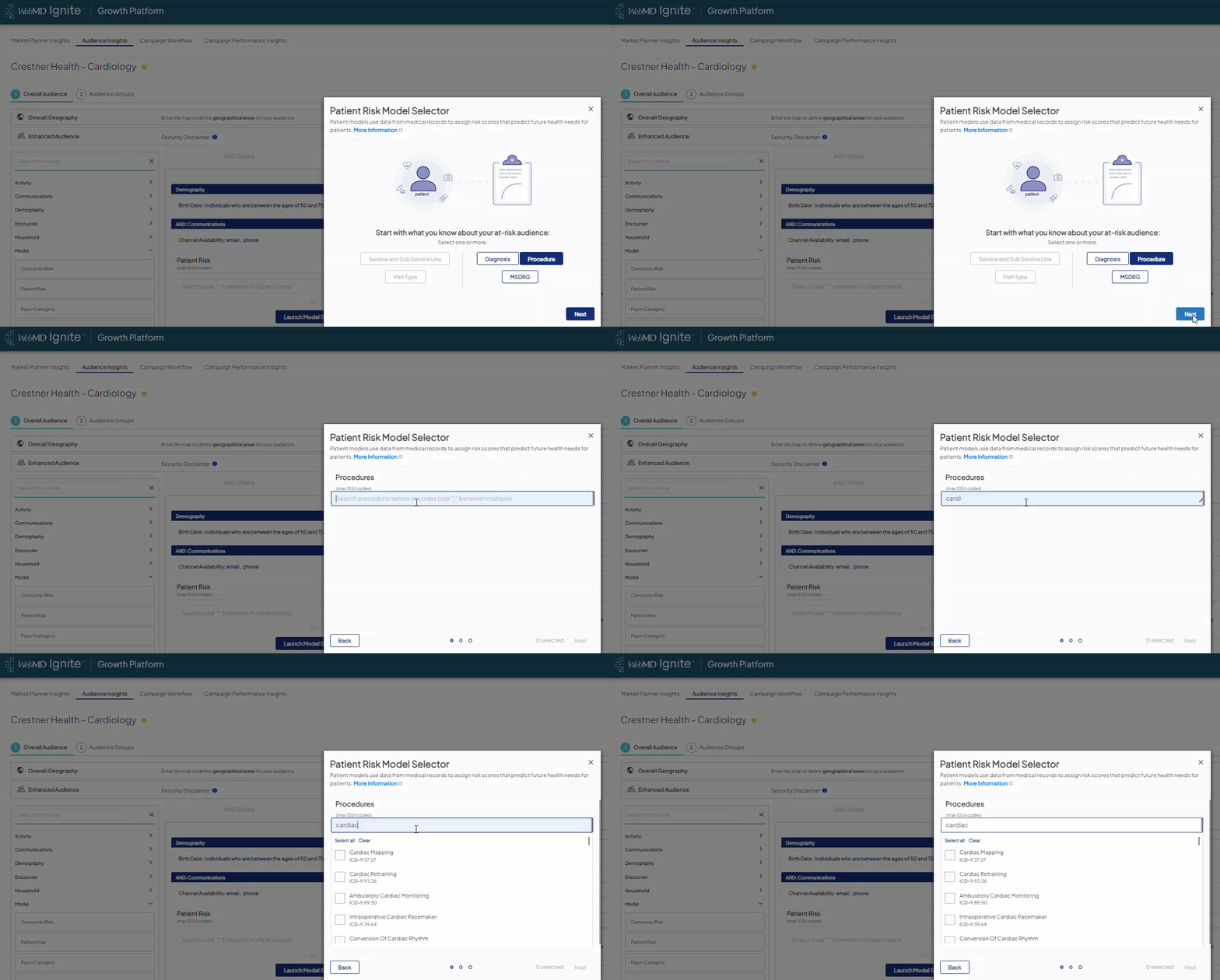
- Use the Back button to return to prior steps
- Search by keywords or enter specific code IDs
- Hover over any selection to view its full descriptions
- If not models are suggested, use the Back button and alter your selection
- Launch the Risk Model Selector.
- Select one or more of the following options: Diagnosis, Procedure, and/or MSDRG.
- Click Next.
- One-by-one for each type of medical code you selected in the prior step, you are prompted to search for and select the specific medical codes that relate to your campaign objective.
- Once you select codes, click Next to move to the next medical code prompt.
- After the last medical code prompt, a summary of your selections displays.
- Select Find Models to view the suggested risk models based on your selections.
- From the list of results, choose the risk model(s) you want to apply to your target audience.
- Click Finish. The Risk Model Selector workflow closes.
- Save your selected risk models and risk levels to your audience.
Save risk models/risk levels to your audience
Once the Risk Model Selector workflow closes, the risk models you selected in the last step of the Risk Model Selector workflow display in the yet unsaved risk criterion.
- Use the interactive Specify Risk Level graph to choose the risk levels (category codes) of the individuals to include in your target audience. Drag the left and/or right handles to the desired risk levels to select the individuals with that risk level for your selected models.
- Choose Save for the criterion to apply it to your audience.
- The metrics update to reflect the current overall audience (or audience group).