Test emails, dynamic content, and campaigns in Eloqua
Send test emails in Eloqua
Send test emails to verify there are no issues before sending an email in a campaign.
Before sending the test you will want to complete the following:
- Resolve all DRAFT errors
- Review notification errors
- Be sure your email is in the contact database or recipient email address for testing
To send a test email:
- Navigate to Assets, click Emails
- Open existing email, or create a new one
- Click Actions > Send Test
- Fill out these fields in the email checker
- Select an email to test: The email you have open automatically populates this field (can change if necessary)
- Select a testing Email Address: Choose recent contact or enter new email in the ‘To:’ section (can search using Find Contacts and Preview Contacts)
- Select Test: Choose HTML Email - sends in HTML format (don’t use Email Checker - it will deliver unnecessary errors)
-
Click Perform Test
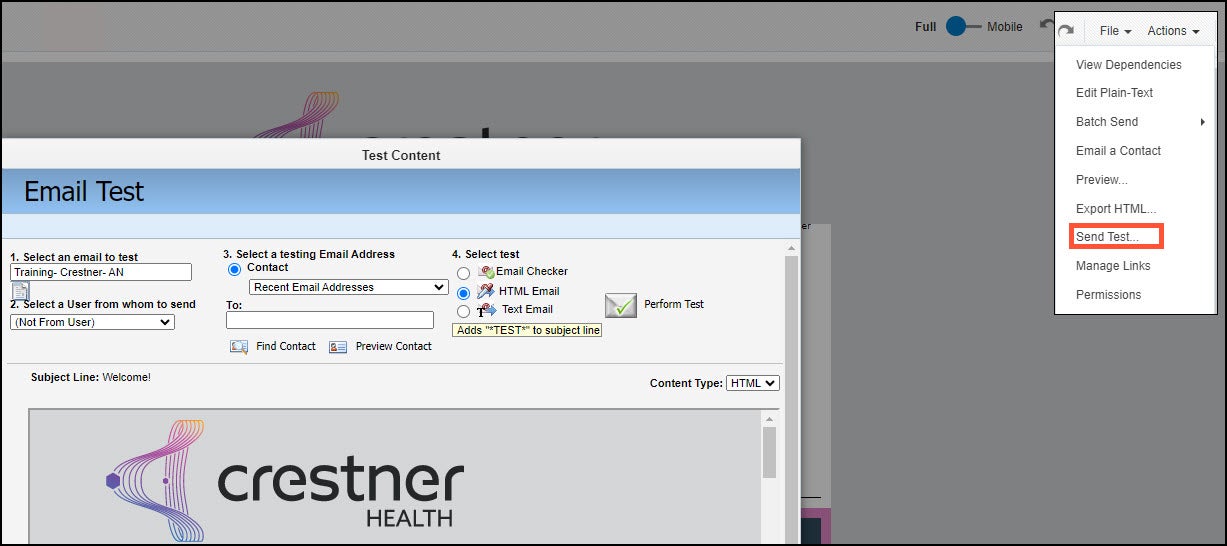 Test emails appear in an inbox with "*TEST*" prepended to the subject line.
Test dynamic content
Anytime dynamic content is used, you need to test that content to make sure it appears properly to the recipient. One way of doing this is to find contacts that fit each version of your email in order to preview the email from that contact’s point-of-view and see the personalization through their eyes.
At present, the smoothest way of testing this would be to open the Custom Object and look at the contacts directly, writing down a contact name for each version to use in the preview. To do this, follow the instructions below.
- Navigate to Audience > Custom Objects
- Select Custom Objects that was linked from Ignite Growth Platform
- Select View Custom Object Record
- Select a record to view their “group” participation
- Note names/email addresses of those in all the various groups

If the versioning is complicated or it is difficult to find specific contacts by browsing the Custom Object, you would create a filter within a segment that would find contacts for each version programmatically.
- Open Segment linked from Ignite Growth Platform
- Click Segment filter and configure the “Has Linked Contact in Custom Object” to look for “group” equal to “AudienceGroupName”
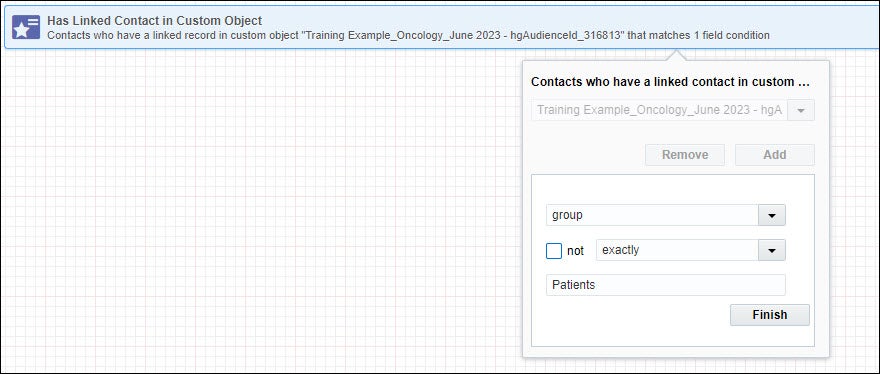
Using the segment filters to identify contacts in each Audience Group would allow you to use those names for testing and preview.
The segment filter is looking for the Audience Group of “Patients” and I would be able to “View Contacts…” to select a name to take to my email preview for testing.
If you are using dynamic content that references the Eloqua contact record and not a Custom Object, you are able to edit your own contact record to contain the information you are testing. This allows you to preview one version at a time using your own profile and is another option while testing dynamic content in emails.
Test campaigns
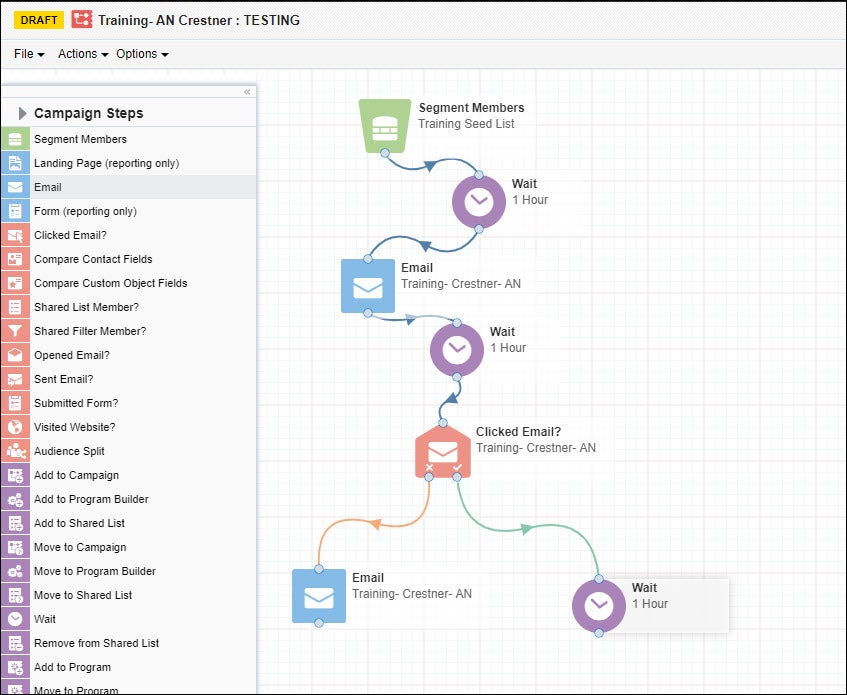
Campaign workflows can be built in a variety of ways and it is important to know the unique variables to your campaign that will need to be tested prior to activation. We recommend making a copy of any campaign that needs testing, adding a test segment or seed list to the canvas, shortening wait steps for your test to run quickly, and activating the test campaign to see how your decisions and resulting actions affect the contacts to whom you are sending your message. To make a copy of your campaign follow the instructions below:
- From Campaigns > Select All > Find the campaign to be tested > Click the ... to the right of the campaign name
- Select Copy (Eloqua creates a duplicate campaign with the same name and “: Copy” appended to the original name)
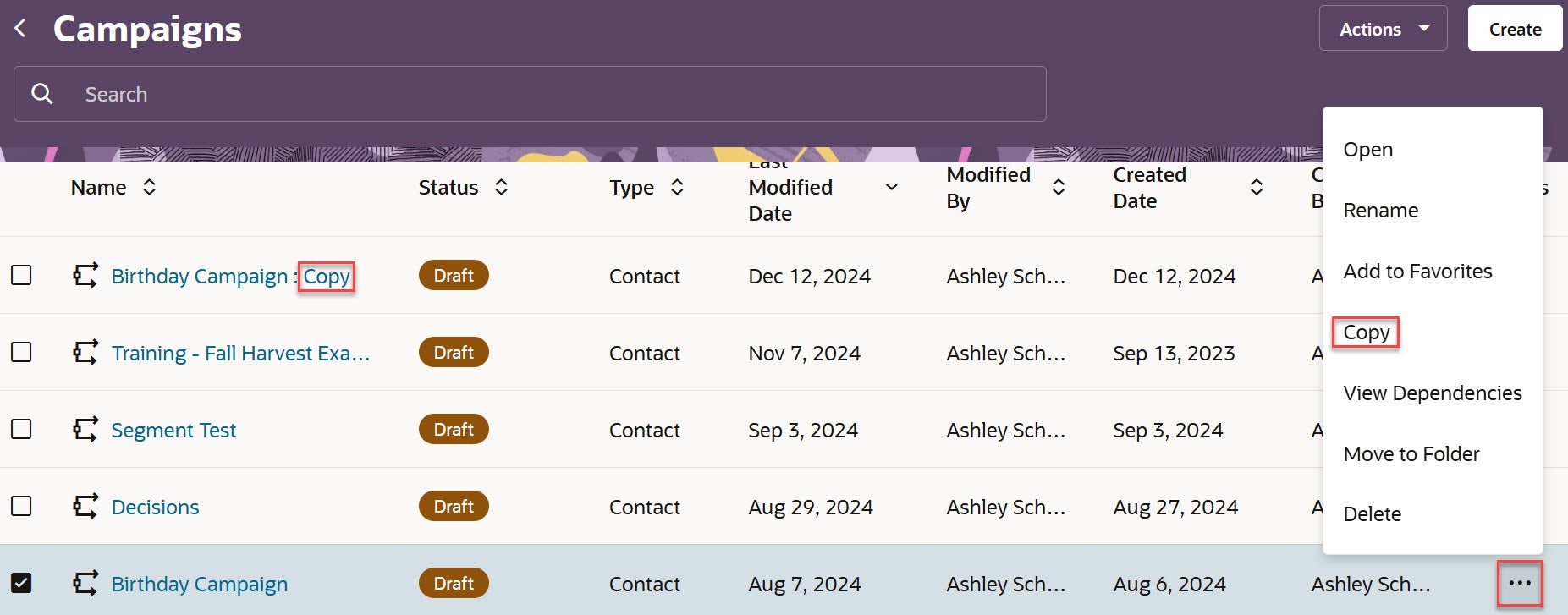
- Open newly created campaign copy
- Replace any live segment members with Test segment or Seed List Members. Ensure these segment members contain the variables needed to test all the workflows contained on your campaign canvas
- Shorten Wait Step times for your test to run quickly
- Clear DRAFT errors, verify your campaign, and Activate
-
Ensure that the campaign routes appropriate contacts to the correct messaging and actions