Accessing the Campaign Reporting dashboard
When you are in Campaign Workflow,open the campaign of your choice either on the Favorites tab (you land here by default) or the All tab.
There are 2 ways to look at reporting:
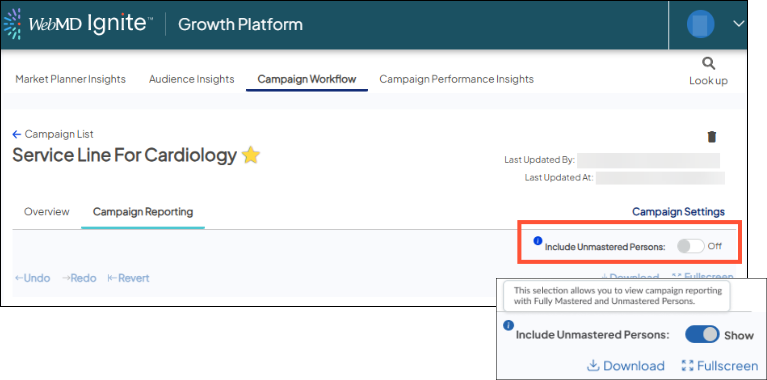
- For more conservative ROI reporting, view results based only on Mastered records (this is the default view).
- To include Unmastered records, with Lower-confidence linking methodology applied, click the toggle on the right of the screen to “Show”.
The values in Campaign Workflow > Campaign Settings automatically populate in reporting Campaign Filters. You can apply different filters in reporting to view results in different ways.
The initial results displayed are based on the objective you've defined in Campaign Settings. You also have the option to look at the overall results of your campaign - all downstream activities and visits across your whole health organization by the individuals who received communication, or engaged in some way, with the campaign.
But changes made to the settings in the report are temporary and for scenario building.
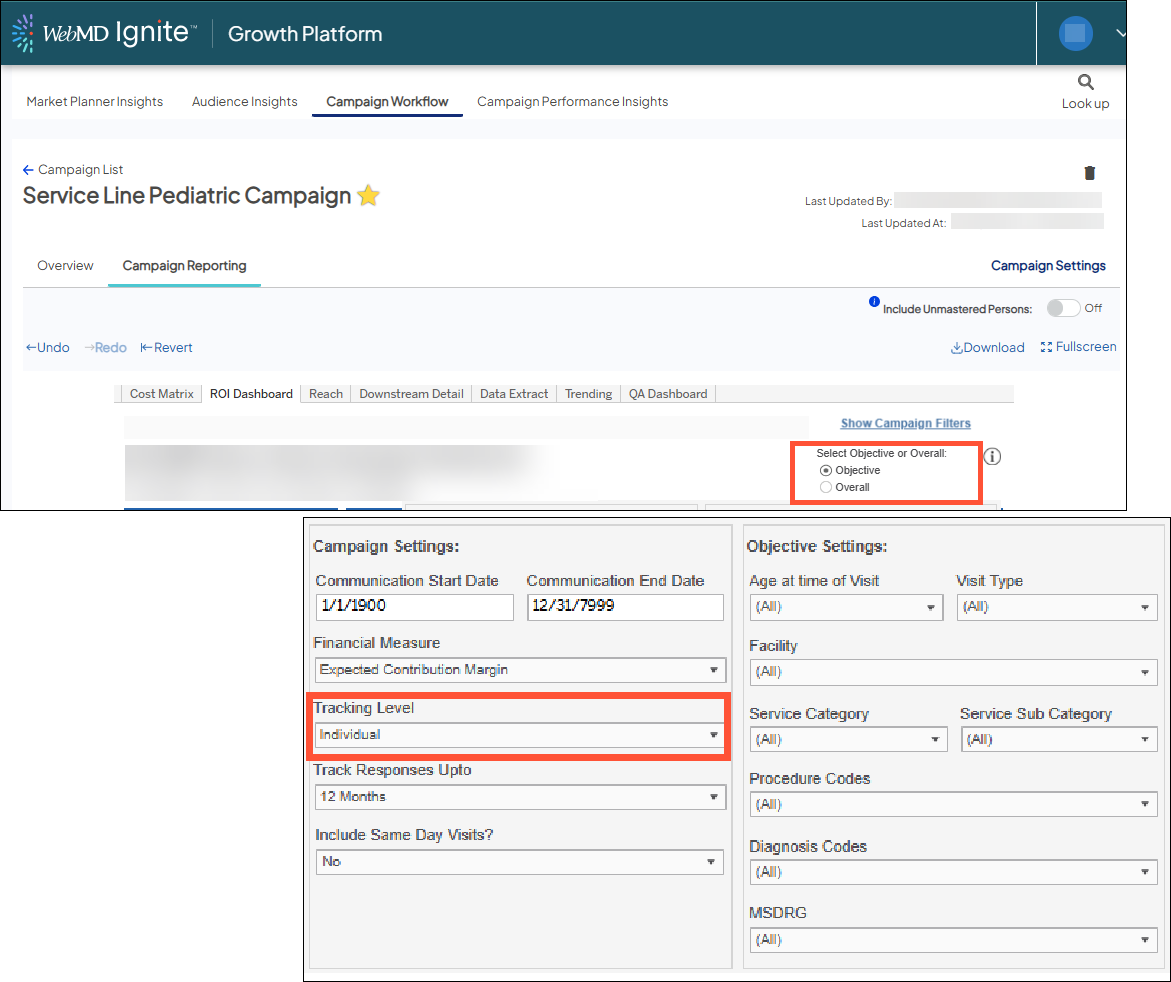
Changing these settings will update the entire dashboard regardless of which tab you navigate to after applying different filters. However, Campaign Settings in Ignite Growth Platform is the only place to permanently update your campaign objectives.
Navigation
Tool Tips

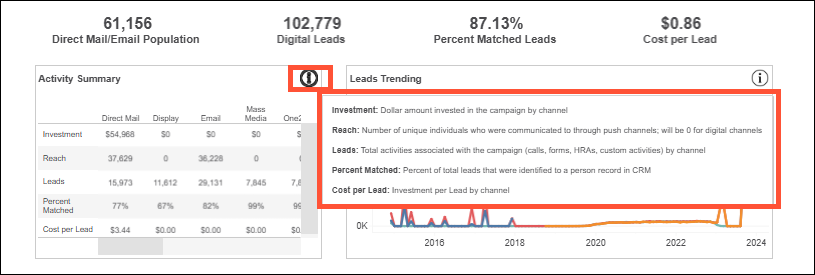
When you hover over this icon in reporting, definitions and other helpful information will display to ensure you understand wwhat you're viewing in reporting.


Campaign Reporting dashboard overview
The Campaign Reporting dashboard includes the following tabs:
- Cost Matrix
- ROI Dashboard
- Reach
- Downstream Detail
- Data Extract
- Trending
- QA Dashboard

By default, you’ll land on the Cost Matrix tab. When clicking the link for Campaign Settings, displayed in the top right of each tab except Cost Matrix. you'll be able to see the Campaign Objectives you've set in Ignite Growth Platform.
You can apply various filters to view results through different "lenses" by clicking the Show Campaign Filters link. Here you can see reporting at the Individual or Household level, change the objective (i.e., goal) of the campaign, and see campaign performance at both the Objective and the Overall levels (learn more about Campaign Filters).
The dashboard defaults to Objective level reporting to reflect the campaign objectives and goals set by the owner in Campaign Workflow. By selecing Overall, ALL activities and visits by the individuals who received a communication through push channels or responded to a pull channel message will display. This means that none of the selected filters in Campaging link above are applied to the campaign reporting since they are set based on the campaign objective.

More resources
- Reporting overview
- Top-level KPIs
- Cost Matrix tab
- ROI Dashboard tab
- Reach tab
- Downstream Detail tab
- Data Extract tab
- Trending tab
- QA Dashboard tab
- Campaign Filters