Campaign Filters
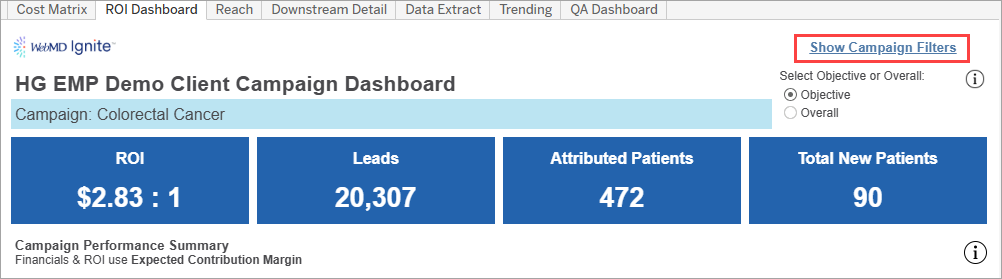
To access campaign filters, click the link in the top right of any tab (except for Cost Matrix, where they’re not applicable). Click the link again to hide the filters.
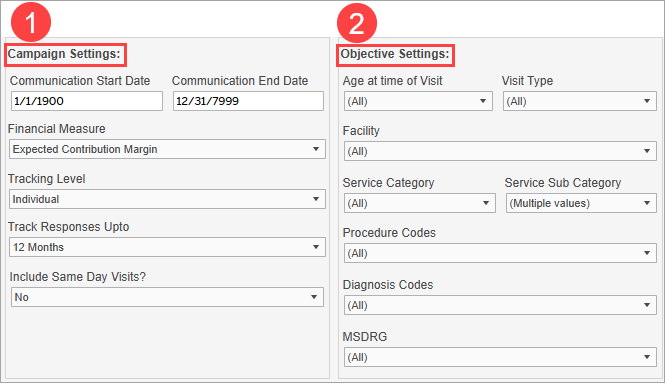
For the filters, there are 2 main categories that compare to the views in Campaign Settings in Campaign Workflow:
- Campaign Settings: Apply to the overall campaign.
- Objective Settings: Specifically define the objective visit criteria of the campaign for downstream encounter attribution
Campaign Settings
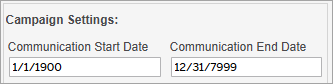
- Communication Start Date and Communication End Date: You can limit campaign touches to a specific time period, such as a particular year, quarter, or month. When applying this filter, Campaign Reporting will display results of the communications that occurred only within that defined date range.
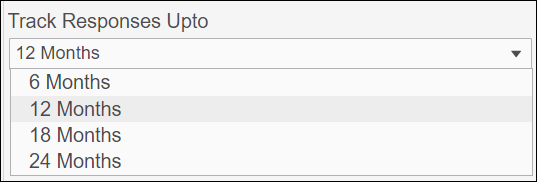
- When narrowing down the communication date ranges, the results will reflect downstream activities based on marketing events that fall within the specified dates. The results displayed in reporting are also impacted by the "Track Responses Up to" filter. All downstream activities and visits associated with communications that fall within the set Start Date and End Date and occurred within "X" months after the communication date (Track Responses Up to setting) will be included.
- Example: Campaign with monthly communications (emails, digital ads, etc.)
- Campaign reporting filters set as follows:
- Communication Start Date: 1/1/2024
- Communication End Date: 3/1/2024
- Track Responses Upto: 12 months
- Megha & Danny both engage with the campaign as follows:
- Megha:
- 1/1/2024: has a marketing event (e.g., submitted a form, received an email, etc.)
- 8/1/2024: has a downstream visit that meets the campaign objective
- Danny:
- 3/28/2024: has a marketing event (e.g., submitted a form, received an email, etc.)
- 2/1/2025: has a downstream visit that meets the campaign objective
- Megha:
- Reporting results:
- Both Megha and Danny are included as an activity (since her engagement falls within the start & end dates)
- Megha's 8/1/2024 downstream visit is included in reporting (since it falls within the 12 month tracking period)
- Danny's 2/1/2025 downstream visit is NOT included in reporting (since it falls outside of the 12 month tracking period)
- This example demonstrates how the Communication Start/End Dates do NOT apply/limit what encounters are included in reporting - the Track Responses Up to filter defines what visits will be included.
- Campaign reporting filters set as follows:
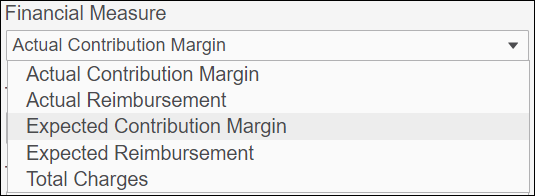
- Financial Measure: 5 different options, defaulting to Expected Contribution Margin. Some users can only send Total Charges and no other financial measures. By selecting a new financial measure such as Total Charges in that circumstance, the dashboard populates all financial metrics and ROI calculations based on Total Charges (or any other selection). If a measure that has not been sent is selected, no data will display.
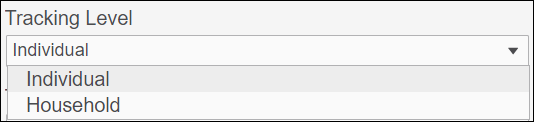
- Tracking Level: Defaulting to Individual, the tracking level reports on individuals who interacted with or touched the campaign directly, while Household tracking reports on the primary individuals plus any household members. NOTE: selection in Campaign Settings (in Campaign Workflow) will be automatically applied in Campaign reporting filters.
- Track Responses Up to: Indicative of the downstream tracking period in Ignite Growth Platform which determines how many months to attribute from every campaign touch.
- Include Same Day Visits? Defaulting to No, this mainly impacts Emergency or Urgent Care campaigns. If a consumer clicks on an ad and goes in the very same day for a visit, these can be tracked by selecting Yes. NOTE: selection in Campaign Settings (in Campaign Workflow) will be automatically applied in Campaign reporting filters.

Objective Settings
All filters below work use ‘AND’ logic at this time, meaning the more filters added, the more refined the data becomes.
Campaigns without Campaign Objectives: The default filter view above indicates no objectives were selected in the original Ignite Growth Platform Campaign Settings. When this occurs, the default view will include (All) values represented in the report. In this view where (All) values are represented, the toggle between Overall and Objective should produce almost identical reporting outputs.
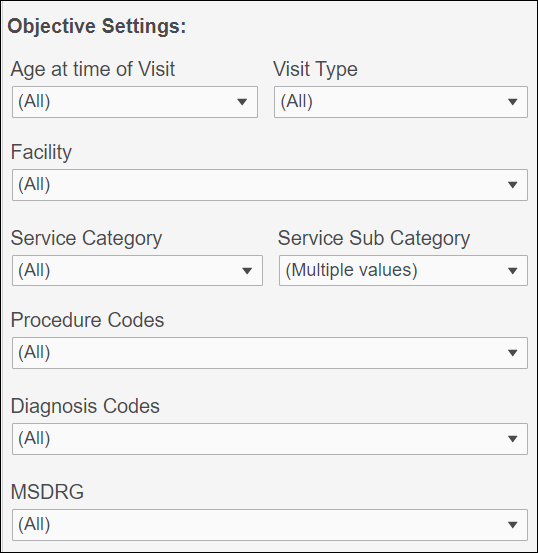
Campaigns with Campaign Objectives: When Campaign Settings are selected in Ignite Growth Platform, those defaults will be applied upon opening the dashboard. If more than 1 is selected, a multiselect will appear indicating more than one value(s) are selected. Click on any of the multi-select dropdowns to verify selections are the same as your in-platform Campaign Setting selections.
- Age at Time of Visit: Includes the age at the time of visit, mainly for the benefit of pediatric campaigns.
- Visit Type: [i.e., Encounter type; use definition from IGP]
- Facility: [i.e., Encounter type; use definition from IGP]
- Service Category: Includes Ignite Service Lines (indicated with an IGP prefix) and custom service lines defined by your organization, if applicable (indicated with a CUST prefix)
- Service Sub-Category: Includes Ignite Sub-Service Lines (indicated with an IGP prefix) and custom sub-service lines defined by your organization, if applicable (indicated with a CUST prefix)
- Procedure Codes, Diagnosis Codes, MSDRG: Newly available for you to define as part of the objective; currently are all ‘AND’ filters as noted above.
- Cost Matrix tab: To reflect the detailed cost setup in Ignite Growth Platform, we’ve added this tab to capture those details and also allow you to change these scenarios.

-
If you’re interested in pediatric reporting, in Campaign Settings (in Campaign Workflow), select Household for Tracking Level and Age at Time of Visit to 0-17. This combination of filters allows you to only look at visits from any children within the household (without including adults).
-
You can select either Ignite Service Lines or your organization’s custom service line (if applicable), or a combination of both to help fill any gaps in reporting.