Eloqua Campaigns overview
Campaigns are the center of email marketing automation. They allow you to create highly personalized journeys for your audience.
Campaign types in Eloqua
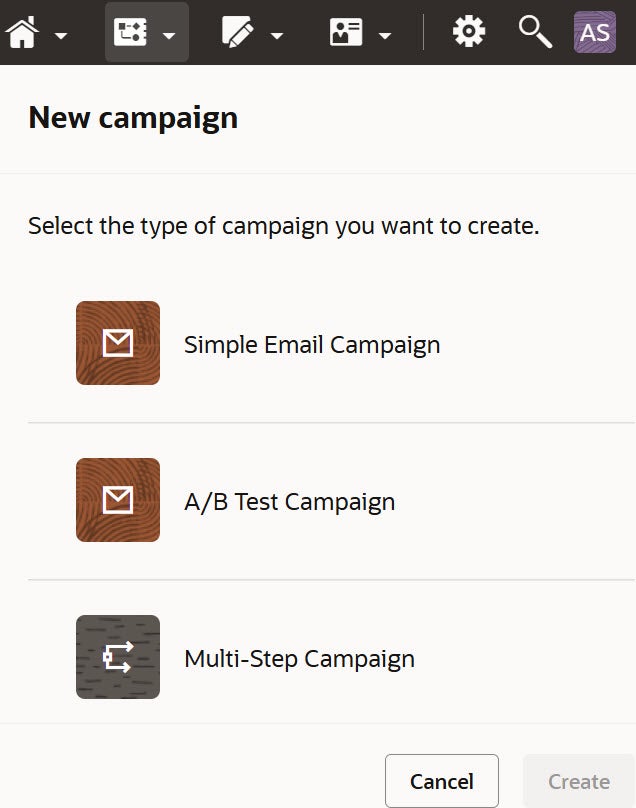
There are 3 types of campaigns to choose from depending on your needs, though they work in different ways. Select Campaigns and click Create to select the type of campaign you would like to build.
Simple campaigns
Simple campaigns are more transactional, like confirmation emails or single step welcome emails. You choose your segment (audience), your email and when to send the email. Learn more about building out a simple email campaign here.
A/B Testing
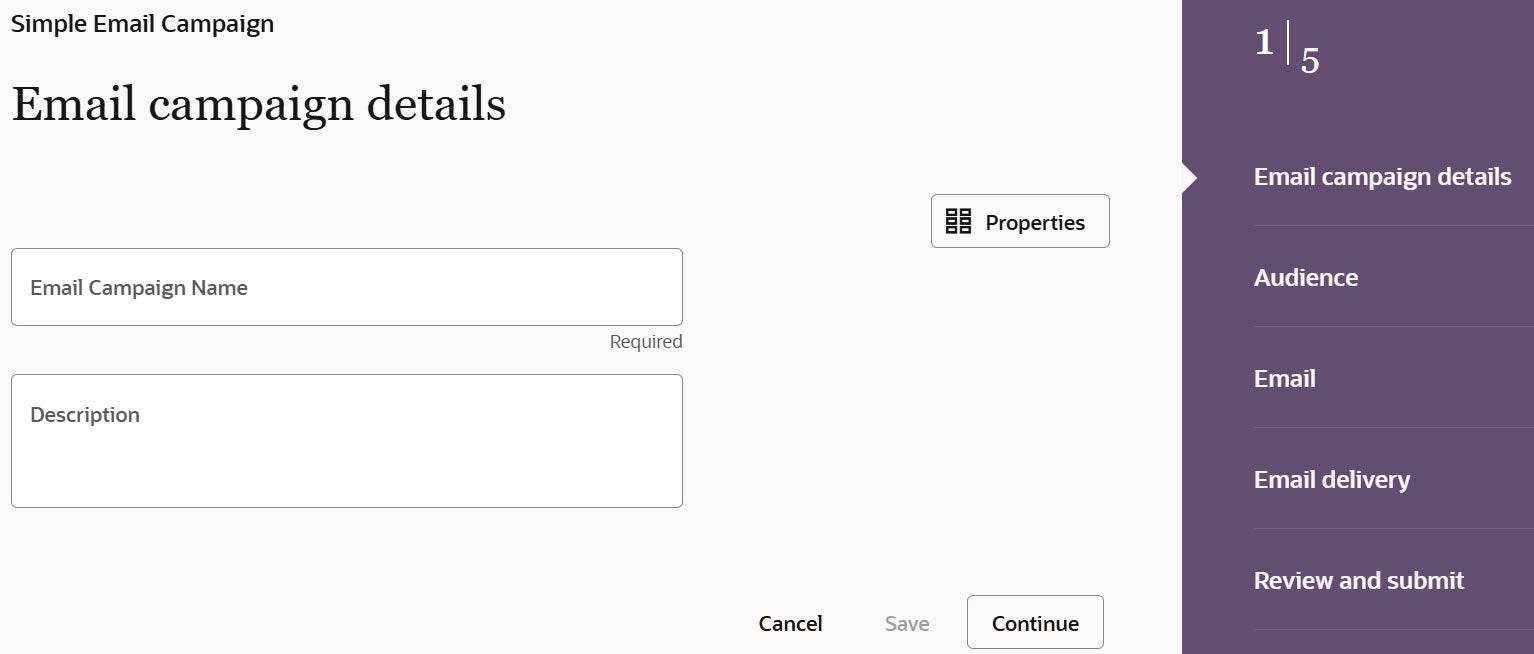
A/B testing allows you to compare the performance of two different emails. You may want to know which subject line performs best or which hero image is the most attention grabbing. Learn more about how to run an A/B test campaign here.
Multi-Step Campaigns
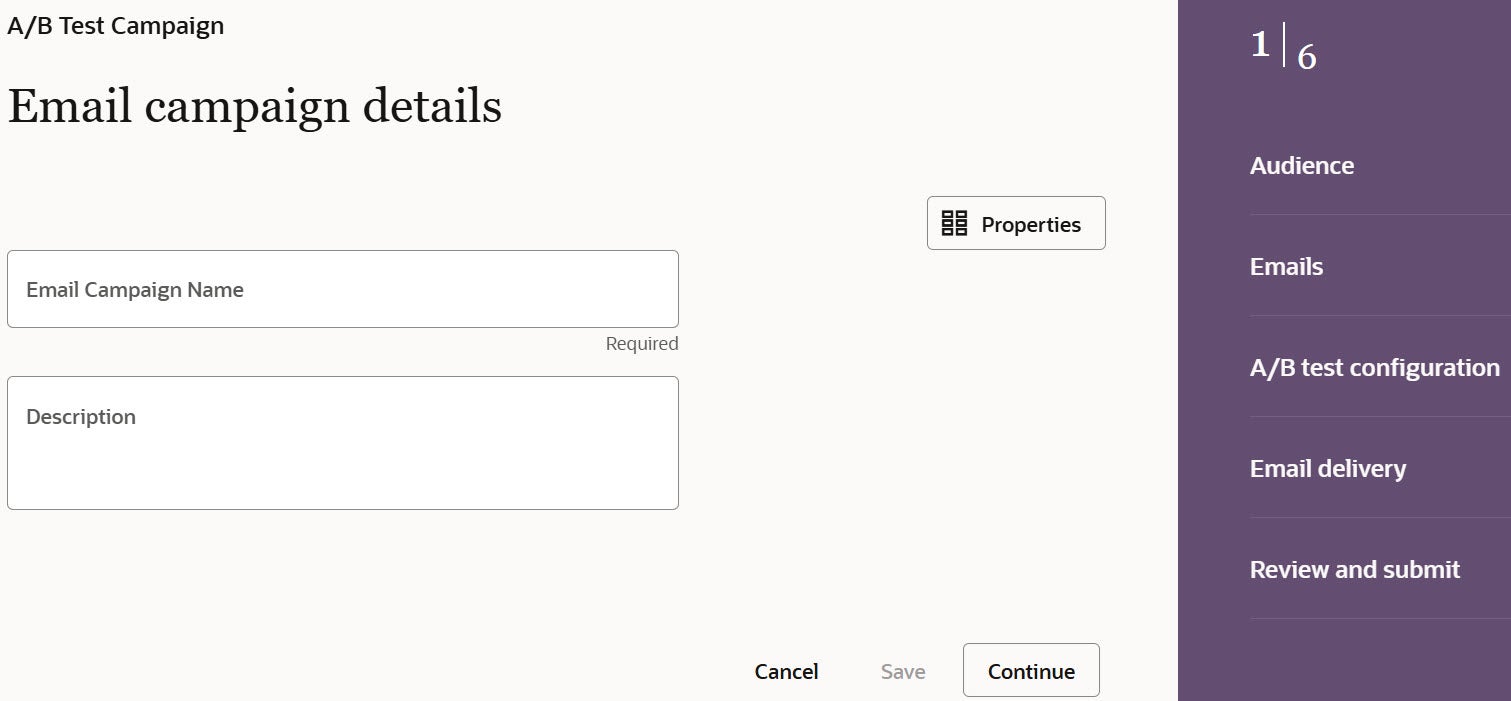
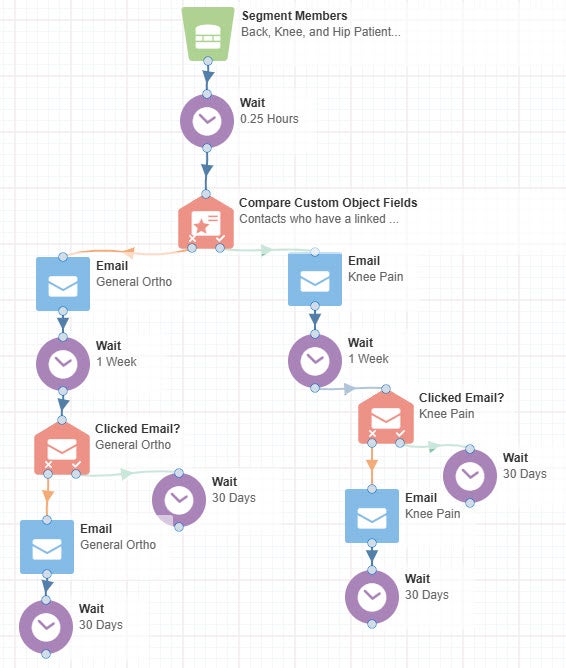
Multi-Step campaigns allow for a much more robust journey for your audience. This type of campaign can adapt based on your contacts' real time interactions. Learn more about building out a multi-step email campaign here.
Element Groups
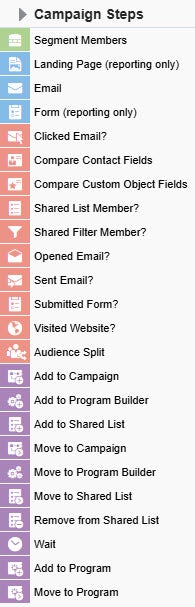
There are four element groups:
- Audience (green options)
Choose the segment members you would like to include in your campaign. - Assets (blue options)
Add the elements that your audience will interact with. - Decisions (pink options)
Customize the campaign experience for the audience based on how they interact with your assets. - Actions (purple options)
Either redirect the audience members to another campaign or specific list or have them end in a wait step.
Integration with Ignite Growth Platform
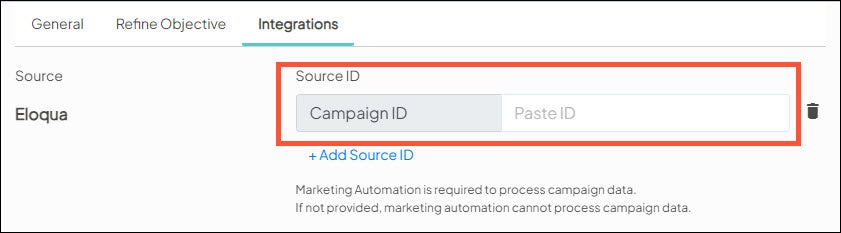
In order for Ignite Growth Platform to track contacts that have been emailed to see their visits downstream, the Eloqua campaign ID must be added to your Campaign Settings in Ignite Growth Platform before you activate your campaign in Eloqua. See the Campaign set up and workflow checklist for more information.

Campaign Activation
Once you have completed building out any campaign, you will need to activate it. The activate button will be available once you have resolved any issues in the campaign and saved it. Once you have activated, contacts will start going through your campaign.